How to Connect a Roku TV to WiFi Without Remote: Every Working Method
Last updated: August 2026
🕒 7 min read
Disclosure: GearPulse360 is a participant in the Amazon Associates Program. Some pages on this site contain affiliate links, and we may earn a commission from qualifying purchases at no extra cost to you.
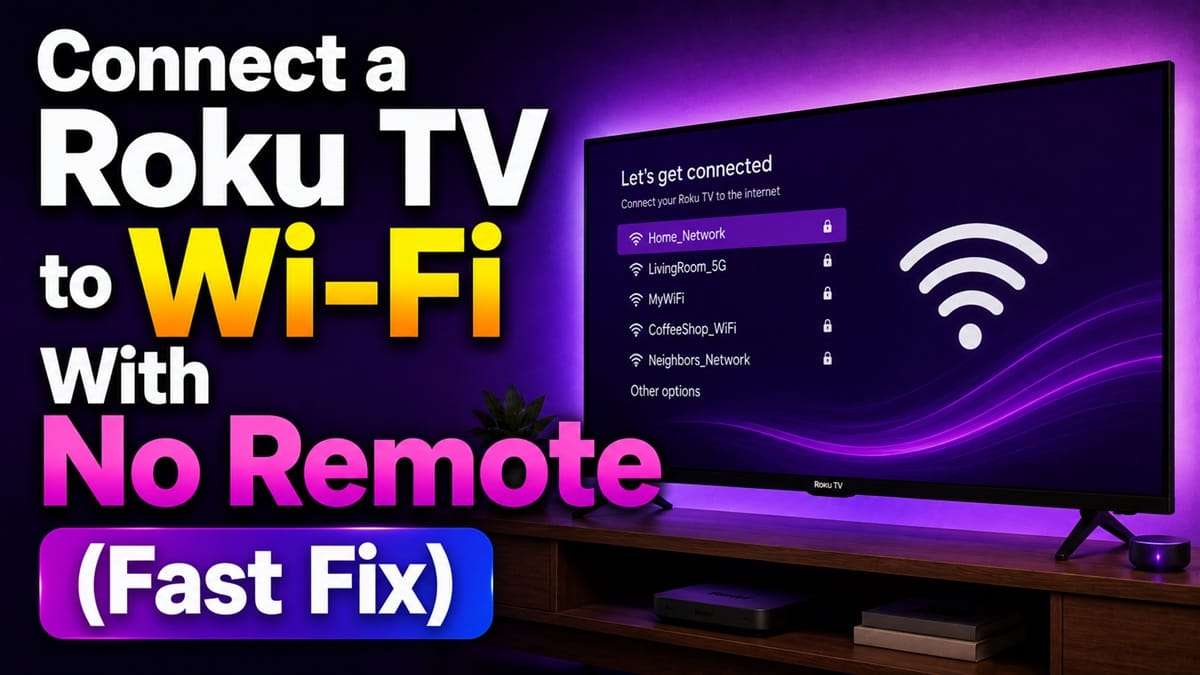
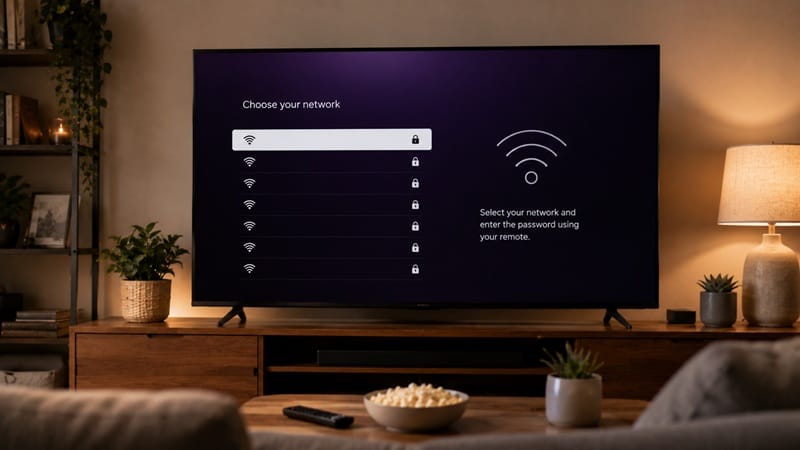
The TV powers on fine. The Roku home screen even loads. But the setup wizard is sitting on the Wi-Fi screen, waiting for a remote that’s buried in a moving box, dead from a swallowed battery, or just gone for good — and none of the front-panel buttons do anything about a wireless password.
This is a different problem than a TV that won’t turn on at all: the set is already awake, it just can’t get past network setup without the one accessory that’s currently missing. Four real workarounds exist, verified against Roku’s own support documentation, and which one applies depends mostly on whether this Roku TV has ever connected to a network before.
Everything below assumes the TV is already on and stuck specifically at the Wi-Fi setup or network-change screen — the power-on scenario itself is a separate one, covered in our guide on how to turn on a TV without a remote.
Table of Contents
Quick Answer
You can connect a Roku TV to Wi-Fi without a remote using the Roku mobile app, a wired USB keyboard or mouse, an Ethernet cable, or a universal remote — the right one depends on whether the TV was ever online before.
- Fastest fix: Ethernet cable, if the TV has a port
- Works even on a factory-reset TV: Wired USB keyboard or mouse
- Needs prior setup: Roku mobile app (TV must have connected to a network at least once before)
- Backup option: A universal remote with IR or Bluetooth pairing
The Short Answer: How to Connect a Roku TV to WiFi Without Remote
Plug in an Ethernet cable if the TV has a port — that skips the wireless setup screen entirely. No Ethernet port? A wired USB keyboard or mouse gives full on-screen navigation. If the TV has connected to Wi-Fi before, the free Roku mobile app can also step in as a virtual remote, but only once the TV finds its way back online well enough for the app to detect it.
Every Method, and Which One Actually Fits Your Situation
Ethernet Cable: The Overlooked Fastest Fix
If the TV has a physical Ethernet port on the back, this is the method that needs the least troubleshooting. Plugging a cable directly from the router into the TV bypasses the wireless network screen altogether, since the TV detects a wired connection automatically and moves straight past the step that was stuck without a remote.
Not every Roku TV includes this port, especially on smaller or budget models, so this only applies if it’s physically present.
Wired USB Keyboard or Mouse: Works on a Brand-New or Factory-Reset TV
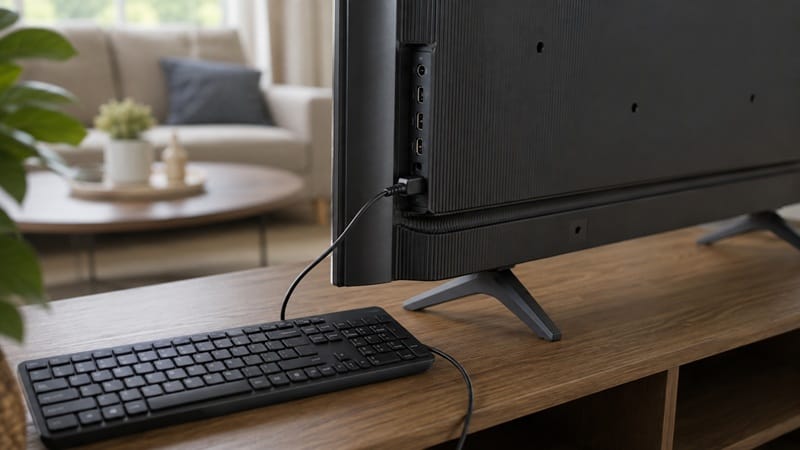
Most Roku TVs include at least one USB port, and it accepts a standard wired keyboard or mouse for on-screen navigation — arrow keys and Enter substitute for the remote’s directional pad and OK button. According to Roku’s official support documentation, this same USB port setup can also be used to connect directly to a wired network with a compatible Ethernet adapter, which covers both the navigation problem and the network connection in one step.
This is the method worth trying first if the TV was just unboxed or recently factory reset, since it doesn’t depend on any prior network history the way the mobile app does.
Why the Roku App Doesn’t Always Work Here
It Needs the TV to Be Findable First
The Roku mobile app turns a phone into a virtual remote, but it can only detect a Roku TV that’s already reachable on the same network — which is exactly what’s missing if the set has never connected before or just went through a factory reset. This is the detail that trips people up: the app looks like the obvious fix, but it’s a fix for a TV that’s temporarily offline, not one that’s never been online at all.
Wi-Fi setup friction isn’t unique to Roku TVs — how smoothly a set walks a first-time buyer through initial network setup, remote or not, is one of the smaller but real differences between this year’s models. Our best OLED TVs of 2026 roundup factors setup and everyday usability details like this in alongside picture quality and gaming performance for anyone still comparing options.
When the Mobile Hotspot Trick Helps
If a Roku TV was previously set up on a Wi-Fi network and that network’s name and password haven’t changed, a phone’s mobile hotspot matching those same credentials can bring the TV back online long enough to use the app as a remote — useful while traveling, or after moving to a new home before the router is set up.
Step-by-Step: Getting Online Without a Remote
The order below moves from the setup that needs the least extra hardware to the one that needs the most:
- Check for an Ethernet port on the TV. If there’s one, plug a cable in from the router — most Roku TVs auto-detect the wired connection and skip the on-screen network screen entirely.
- No Ethernet port? Plug in a USB keyboard or mouse. Use the arrow keys and Enter (or mouse clicks) to navigate to Settings, then Network, then Set up connection, and choose the Wi-Fi network from the list.
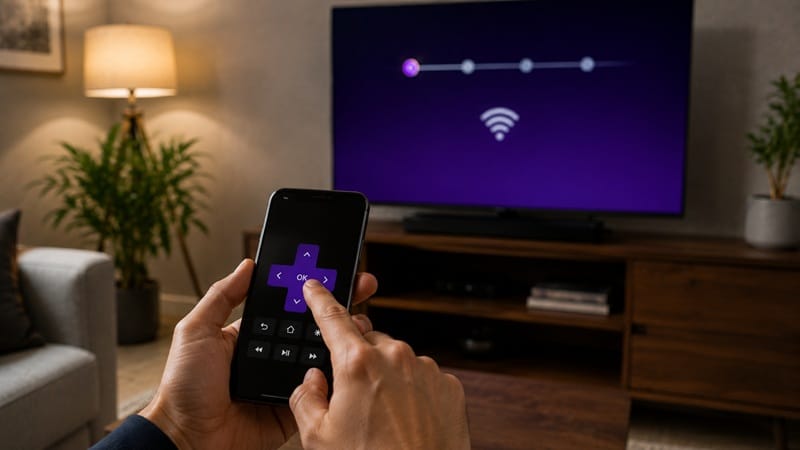
- If the TV has been online before, try the Roku app. Install it on a phone already connected to the same Wi-Fi network, open Devices, select the TV, and tap the on-screen Remote icon to control the network setup screen directly.
- Away from home with no working remote? A mobile hotspot matching the TV’s last known Wi-Fi name and password can bring it online long enough to switch over to the app.
- None of the above working? A universal remote programmed for Roku (IR or Bluetooth models both exist) is the most reliable permanent replacement while a proper Roku remote gets replaced.
What This Means for You in Practice
Who Should Pay Attention to This
This applies directly to anyone setting up a new Roku TV without its remote in hand, moving a Roku TV to a new home with a different Wi-Fi network, or dealing with a factory-reset TV that lost its saved network. If a spotty or dropped Wi-Fi connection is turning into a recurring issue even after the TV is back online, it’s worth reading through our how to connect TV to Wi-Fi guide, which covers the broader setup and troubleshooting process for any brand once a remote is available again.
Who Doesn’t Need to Worry About This
If the remote works and the only issue is a forgotten password or a network that isn’t showing up in the list, none of the no-remote workarounds above are necessary — that’s a more common troubleshooting scenario with its own separate fix path.
FAQs: How to Connect a Roku TV to Wi-Fi Without a Remote
How do I connect a Roku TV to Wi-Fi without a remote if it’s brand new?
Use a wired USB keyboard or mouse plugged into the TV’s USB port to navigate the on-screen setup — this works even on a TV that’s never connected to any network before, since it doesn’t rely on the Roku app finding the TV first. According to Roku’s official support documentation, the mobile app method only works once the TV is already reachable on a shared network, which a brand-new TV isn’t yet.
Can I use my phone as a Roku remote without Wi-Fi at all?
No — the Roku app needs the phone and the TV to be on the same network to communicate, so a completely offline TV can’t be controlled by the app until it’s connected through some other method first, like Ethernet or a USB keyboard.
Will a universal remote work with a Roku TV permanently, or is it just a stopgap?
It can work permanently — a universal remote programmed for Roku, whether IR or Bluetooth, handles day-to-day navigation and volume just like the original remote does. It’s a reasonable long-term replacement, not only an emergency workaround.
Does connecting through a USB keyboard change any of the TV’s settings?
No — the keyboard is only a navigation input, the same as the remote’s directional pad and Enter button. It doesn’t change picture settings, network settings, or anything else beyond what gets selected on screen during setup.
Why does my Roku TV keep asking to reconnect to Wi-Fi after a power outage?
A brief power outage generally doesn’t erase a saved Wi-Fi network, so the TV should reconnect on its own once power returns. A full factory reset is the exception — that does clear the saved network entirely, which is when one of the no-remote setup methods above becomes necessary again.

iYaiii
Editor, GearPulse360
iYaiii is the editor and founder of GearPulse360, specializing in TV reviews and consumer electronics. He researches every recommendation before publishing.
✅ Based on spec analysis and Roku’s official data — last verified August 2026