How to Connect TV to Wi-Fi: A Step-by-Step Guide for Any Brand
Last updated: August 2026
🕒 7 min read
Disclosure: GearPulse360 is a participant in the Amazon Associates Program. Some pages on this site contain affiliate links, and we may earn a commission from qualifying purchases at no extra cost to you.
You’ve just gotten a new TV out of the box, plugged it in, and the setup screen is asking for a Wi-Fi network before it’ll let you do anything else. Maybe you’ve had the TV for years and just moved, or reset it after a firmware update wiped your settings. Either way, you’re staring at a keyboard on the screen wondering which button actually confirms the password.
The good news: connecting a TV to Wi-Fi takes the same handful of steps on nearly every smart TV made in the last several years, regardless of brand. The screens look slightly different — LG’s webOS menu isn’t laid out like Samsung’s Tizen menu — but the underlying process (find Network in Settings, pick your Wi-Fi name, type the password) hasn’t really changed. The part that trips people up isn’t the steps themselves; it’s small details like typing a case-sensitive password with a remote, or not realizing their router uses two separate network names for its 2.4GHz and 5GHz bands.
This guide walks through the universal setup process, when a wired connection is worth the extra cable, and what to check if the connection won’t complete. If you’re trying to get content onto the screen a different way — say, streaming from your phone instead of using the TV’s own Wi-Fi — our guide on how to connect your phone to a TV covers that separately.
Table of Contents
Quick Answer
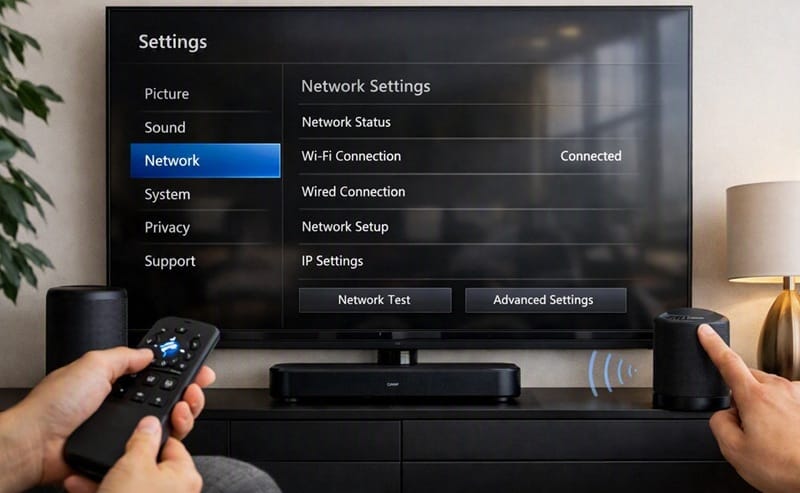
To connect a TV to Wi-Fi, go to Settings → Network (sometimes under General or Connections) → Wi-Fi Connection, then select your network name and enter the password. Most TVs confirm the connection within a few seconds.
- Best for: Any smart TV with built-in Wi-Fi (nearly all TVs sold since 2018)
- Not ideal for: Older “dumb” TVs with no smart features — these need a streaming device instead
- Key advantage: Same basic steps across LG, Samsung, Sony, TCL, and Hisense
- Time needed: Usually under 2 minutes with your Wi-Fi password on hand
The Short Answer: Connecting Any Smart TV to Wi-Fi
Open your TV’s Settings menu, navigate to Network (it may be nested under General or Connections depending on the brand), and select Wi-Fi Connection. Choose your home network from the list, enter the password using the on-screen keyboard, and confirm. The TV will test the connection automatically and let you know within a few seconds whether it succeeded.
How to Connect TV to Wi-Fi, Step by Step
What You’ll Need Before You Start
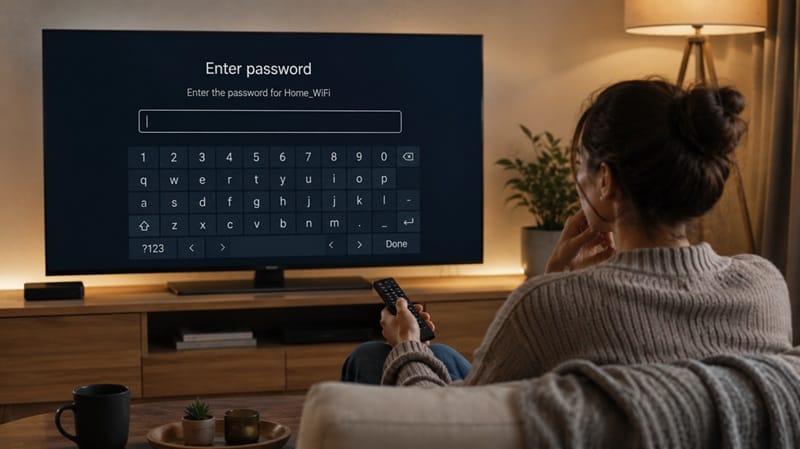
Have your Wi-Fi network name (SSID) and password ready — both are usually printed on a sticker on the bottom or back of your router. If the router has been reconfigured since it was installed, check with whoever set it up, since a stock label password won’t work after a change. You’ll also need a working remote to reach the setup screens in the first place — if yours is missing or dead, our guide on how to turn on a TV without a remote covers backup ways to get the TV powered on and into that menu.
Roku TVs in particular lean on the remote for this kind of onboarding, so if that’s the set in question, our guide on how to connect a Roku TV to Wi-Fi without a remote covers that platform’s specific workaround.
The Universal Menu Path
On most TVs, the path looks like this: Settings → General (or Connections) → Network → Wi-Fi Connection. Select your network from the list of available signals, enter the password with the remote’s on-screen keyboard, and press Connect or Enter. LG’s official setup instructions walk through the exact webOS menu sequence, which is a close match for how most other brands structure the same process. (LG Support)
If your network doesn’t show up in the list at all, look for an “Add Network” or “Other Network” option to type the name manually — this usually means the network is hidden rather than broadcasting its name publicly.
Wired vs. Wireless: Does It Matter in 2026?
Why Ethernet Still Wins for Stability
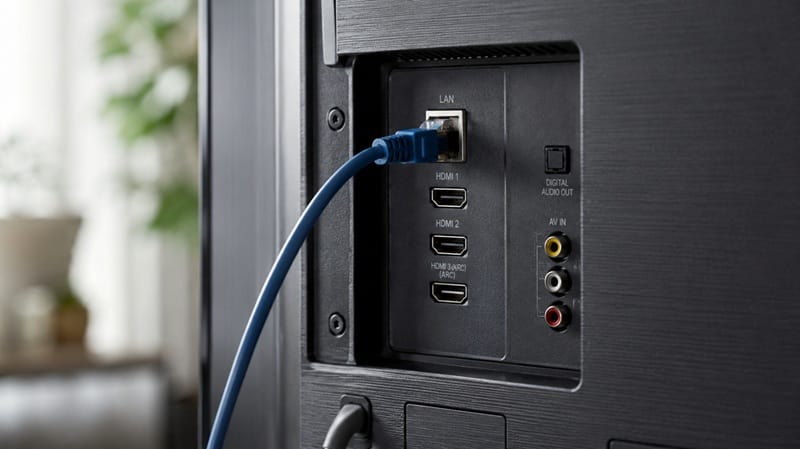
A wired connection is basically a dedicated lane straight to your router — no competing signals, no dead zones. If your TV sits near your router or you can run a cable discreetly along a baseboard, plugging into the LAN port skips the Wi-Fi setup screen entirely and tends to hold up better during heavy 4K streaming or large app downloads.
When Wireless Is the Only Real Option
For most living rooms, running a cable isn’t practical, and modern Wi-Fi (especially newer routers on the 5GHz band) is fast enough for 4K streaming without issue. Once your TV is online, adding other wireless accessories follows a similar pattern — our guide on how to connect a Bluetooth speaker to a TV covers the audio side of that same setup process.
If a spotty connection is one of several things nudging you toward a new set — alongside picture quality, app speed, or gaming performance — our best OLED TVs of 2026 roundup ranks this year’s top picks across all three, so you’re comparing real options rather than settling for whichever set happens to connect easily.
What to Check If the Connection Won’t Complete
A few small details cause most failed attempts. Passwords are case-sensitive, so a lowercase “l” and uppercase “I” matter. Some routers broadcast separate network names for their 2.4GHz and 5GHz bands — older TVs sometimes only see the 2.4GHz one, so try that name first if the 5GHz network doesn’t appear. And if the TV was recently factory reset, it needs to go through the full setup wizard again rather than just reopening the network menu.
If none of that resolves it, the issue is usually on the router’s side rather than the TV’s — worth restarting both devices before assuming anything’s broken.
What This Means for You in Practice
Who Should Pay Attention to This
Anyone setting up a new smart TV, or connecting an existing one after a move or a factory reset, needs to get through this step before streaming apps, voice assistants, or firmware updates will work at all. If a slow or unreliable connection keeps interrupting what you watch, it’s also worth checking whether the TV itself — not just the network — is the bottleneck; our best OLED TVs for streaming guide ranks this year’s models by app performance and load times, not just picture quality.
Who Doesn’t Need to Worry
If you’re only using your TV as a display for a cable box, antenna, game console, or laptop plugged in over HDMI, you can skip Wi-Fi setup entirely — none of the smart features are required for those inputs to work. (If a laptop’s the one going in over HDMI, our guide on how to connect a laptop to a TV covers that wired setup start to finish.)
FAQs: How to Connect Your TV to Wi-Fi
What do I do if my TV won’t connect to Wi-Fi at all?
Start by restarting both the TV and the router, then re-enter the password carefully since it’s case-sensitive. If the TV still won’t detect your network, Samsung’s troubleshooting guide covers a broader set of network-side checks that apply to most brands, not just Samsung sets. (Samsung Support)
Do I need Wi-Fi for my TV to work at all?
No — a TV with no internet connection will still display anything plugged into its HDMI, antenna, or cable inputs. Wi-Fi is only required for smart features: streaming apps, voice search, and automatic firmware updates.
Can I connect my TV to my phone’s mobile hotspot?
Yes, in the same Network menu — select your phone’s hotspot name the same way you’d select a home Wi-Fi network. Keep in mind streaming video uses a lot of mobile data, so this works better as a short-term fix than a permanent setup.
Does it matter if I use the 2.4GHz or 5GHz Wi-Fi band?
It can. The 5GHz band is faster and better suited to 4K streaming, but it doesn’t travel through walls as well as 2.4GHz. If your TV is far from the router or on a different floor, the 2.4GHz network may actually connect more reliably even though it’s technically slower.
Once my TV’s online, what should I set up next?
Most people head straight for their streaming apps, but it’s also worth checking whether your TV can record live TV or antenna channels without a separate box — our guide on how to record TV shows compares every DVR method available once you’re connected.

iYaiii
Editor, GearPulse360
iYaiii is the editor and founder of GearPulse360, specializing in TV reviews and consumer electronics. He researches every recommendation before publishing.
✅ Based on official LG and Samsung support documentation — last verified August 2026