How to Prevent OLED Burn-In: 8 Practical Tips That Actually Work
Disclosure: As an Amazon Associate I earn from qualifying purchases. This article contains affiliate links — we may earn a small commission if you buy through them, at no extra cost to you.
Last updated: June 2026 / 🕒 7 min read
You’ve just unboxed a new OLED TV. The picture looks incredible — inky blacks, vivid colors, that unmistakable depth you can’t get from any other panel type. Then you Google “OLED burn-in” and spend the next hour reading horror stories about scorched logos and ghost images that never go away.
Here’s the thing: most of those stories come from people who used their OLED as a commercial display, left a news ticker running for 12 hours a day, or played the same video game with a static HUD for years on end. Under normal home use, OLED burn-in is genuinely rare — and almost entirely preventable if you know what habits to avoid from day one.
We’ve gone through long-term real-world test data, manufacturer care guidelines, and community reports to put together the most practical prevention guide out there. If you’ve already read our piece on does OLED burn-in still matter in 2026, this is the natural next step — what to actually do about it. And if burn-in is the last thing holding you back from buying, our breakdown of is OLED worth it in 2026 tackles that question head-on.
Table of Contents
The Short Answer: What Actually Prevents OLED Burn-In
Burn-in happens when static elements — channel logos, game HUDs, navigation bars — stay in the same screen position long enough for those pixels to degrade faster than the surrounding ones. The fix isn’t complicated: reduce brightness, limit static content exposure, and let your TV run its built-in maintenance tools. Do those three things consistently and you’re very unlikely to ever see burn-in on a modern OLED.
Why OLED Panels Are Vulnerable — and Why It’s Less Scary Than It Sounds
How Burn-In Actually Happens
Each pixel in an OLED panel generates its own light by pushing electrical current through organic compounds — the same self-emissive design covered in our breakdown of what OLED TV technology is. Those compounds degrade over time — it’s physics, not a manufacturing defect. The issue only becomes visible when one area of the screen degrades significantly faster than the rest, which is what happens when a static image sits in the same spot for thousands of hours.
Think of it like a footpath across a lawn. One person walking across it once leaves no trace. But if the same path is used every single day for years, you eventually get a dirt trail. OLED pixels work the same way — occasional heavy use in one spot isn’t a problem; relentless, repetitive use is.
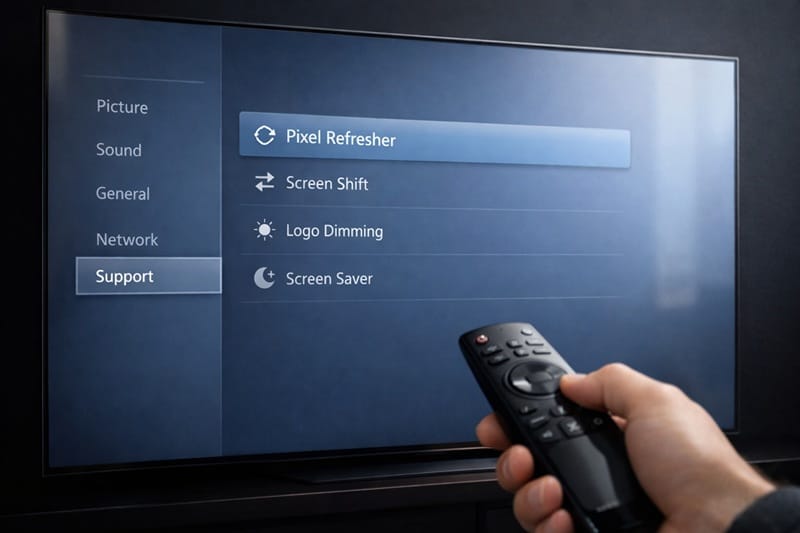
Most manufacturers now build compensation algorithms directly into their panels. LG’s OLED Care Pro, Sony’s Panel Maintenance, and Samsung’s built-in pixel refresh all actively work to even out wear across the screen. LG documents exactly when and how their Pixel Refresher runs — it kicks in automatically when the TV has been on for a set number of hours and can also be triggered manually.
How Modern Panels Changed the Risk Level
Older OLED TVs from 2017–2019 were more susceptible because the organic compounds weren’t as stable and the brightness was lower, meaning you’d push the panel harder to get watchable brightness in a lit room. Current generation panels — including MLA-enhanced displays and Samsung’s QD-OLED — are both brighter and more efficient, which reduces the per-hour stress on any given pixel.
That said, the risk doesn’t disappear entirely with newer hardware. It’s reduced, not eliminated. Which is exactly why the eight habits below still matter.
8 Practical Ways to Prevent OLED Burn-In
1. Turn On Pixel Shifting
Almost every OLED TV ships with a pixel shifting feature — it moves the entire image by a tiny amount (often just 1–2 pixels) at regular intervals, so no single pixel carries all the load for static elements. On LG TVs it’s called Screen Shift; on Sony it’s Pixel Shift. Go into your picture or display settings and confirm it’s enabled. It usually is by default, but it’s worth checking, especially if you’ve done a factory reset.
2. Set a Reasonable Brightness Level
Running any OLED at maximum brightness accelerates pixel wear. That doesn’t mean you should watch in the dark — it means there’s a practical ceiling you should stay under for everyday viewing. Most calibrators recommend OLED Light (on LG) or Brightness (on Sony/Samsung) somewhere in the 50–70% range for typical home environments. You’ll still get excellent peak brightness in HDR scenes; you’re just not flogging the pixels unnecessarily during a static menu screen.
If you’re watching in a bright room, it’s tempting to crank everything up. A better approach: close the blinds or adjust room lighting where possible, rather than pushing the panel harder than it needs to be pushed. For a full picture-mode walkthrough beyond just brightness, see our guide to best OLED settings for movies. If you’ve dialed things down for panel health and now the picture feels too dim for your room, our troubleshooting guide on why your OLED looks too dark covers how to find the right balance without undoing this setting.
3. Enable the Screen Saver
When you pause content — mid-film, during a loading screen, while you take a phone call — a static image sits frozen on a panel that’s still fully lit. Every OLED has a screen saver or screensaver timeout setting that kicks in after a set period of inactivity. Set it to 2 minutes. It’s slightly more aggressive than the default on most TVs, but it’s one of the most effective small habits you can build.
4. Run Pixel Refresher Regularly
Pixel Refresher (LG), Panel Maintenance (Sony), and similar tools on other brands work by running a specific pattern across the screen that helps even out uneven pixel wear. On LG TVs, the Pixel Refresher runs automatically after roughly every 2,000 hours of use — you’ll see a prompt appear when it’s due. Don’t dismiss it. Let it run. It takes about an hour on most models and is best done overnight.
You can also trigger it manually every few months as a precaution, especially if you’ve been watching a lot of sports with persistent score overlays or playing games with static UI elements.
5. Use OLED Care / Panel Care Mode
Most modern OLED TVs have a dedicated care mode that bundles several protective features together — automatic logo detection, brightness limiting for static areas, and automatic refresh cycles. On LG C-series and G-series TVs, find it under Settings → Support → OLED Care. On the Sony A95L and A80L, it’s under Settings → Display & Sound → Panel Maintenance. Samsung’s equivalent lives under Settings → Support → Device Care. If yours isn’t listed there, search “care” in the TV’s settings search bar — it’s almost always there, just buried.
6. Be Careful with News Channels and Live Sports
A 90-minute movie is almost entirely dynamic content — the image is constantly changing and no single pixel is under sustained load. A three-hour news broadcast is a completely different story. The ticker at the bottom, the channel logo in the corner, the chyron graphics — those can stay in the same position for hours at a time.
You don’t need to stop watching news or sports. Just apply a couple of adjustments: some TVs include a screen position shift specifically for this — on LG it’s under Picture → Aspect Ratio Settings → Just Scan. A subtle zoom via your TV’s Picture Size settings (not overscan) shifts where the ticker sits on the panel enough to help. It’s not a perfect fix, but it spreads the load. Use your TV’s logo dimming feature if it has one, and take breaks that let the TV run its automatic compensation routines overnight. If live sports make up most of your viewing, our picks for the best OLED TVs for sports highlight models with stronger built-in scoreboard protection.
7. Enable Logo Dimming / Automatic Dimming for Static Areas
Many OLED TVs now include a feature that detects persistent static regions — a logo that’s been in the corner for ten minutes, a score ticker that hasn’t moved — and automatically reduces the brightness in just that area. On LG, this is called Logo Luminance Adjustment. It’s subtle enough that you usually won’t notice it’s active during a match — the dimming is gradual, not a sudden drop — but it meaningfully reduces the stress on those specific pixels. If you’re a daily sports watcher, this single setting earns its keep.
8. Vary Your Content
This sounds almost too simple, but it’s worth saying: variety is the best long-term protection. An OLED TV used for movies, streaming, gaming, and occasional sports will wear far more evenly than one used primarily for a single content type. If gaming is your primary use case, consider enabling your console’s rest mode or screensaver more aggressively, since game HUDs tend to be the most static elements that OLED displays see regularly.
What This Means for You in Practice
Who Should Pay Close Attention to This
The people who actually need to take this seriously are daily gamers deep into a single title — think 200 hours in Elden Ring with the same HUD corner locked in place — and anyone who leaves a news channel running as background noise for most of the day. Sports fans who watch multiple live matches per day fall into the same bracket, especially with score overlays that never move.
Heavy gamers in particular should look at their console settings alongside TV settings — enabling the console’s screensaver to kick in during pauses adds another layer of protection that the TV alone can’t provide.
Who Doesn’t Need to Lose Sleep Over This
Casual viewers who watch a mix of streaming content, movies, and occasional sports are almost certainly fine with just the default factory settings and a quick check to make sure pixel shift and screen saver are on. Under normal mixed-use conditions, RTINGS’ long-term real-world burn-in testing — which ran TVs for 9,000+ hours — showed no meaningful burn-in in casual and moderate-use scenarios. That’s over a year of continuous runtime.
Modern OLED panels are meaningfully more resilient than the sets that first gave the technology its burn-in reputation. If you turn on pixel shift, set a 2-minute screensaver, and let the Pixel Refresher run when it prompts you — you’ve done 90% of what matters. Everything else on this list is just extra insurance. If you’re curious how this resilience translates into overall lifespan, we break it down in how long OLED TVs last.
Ready to choose your OLED TV? See our top-tested picks for every budget and use case. See Best OLED TVs 2026 →
FAQs: How to Prevent OLED Burn-In
Can you actually prevent OLED burn-in completely?
Yes — under realistic home viewing conditions, burn-in is almost entirely preventable. The key factors are avoiding prolonged static images, keeping brightness at a sensible level, and running your panel’s built-in maintenance tools (like Pixel Refresher) regularly. RTINGS’ real-life burn-in testing found that normal and even fairly heavy mixed-use viewing produced no measurable burn-in after thousands of hours.
Does screen retention mean my OLED is permanently burned in?
No — and this is one of the most common points of confusion. Screen retention is temporary image persistence: you’ll see a ghost of a recent image that fades away within minutes or a few hours. Burn-in is permanent and won’t fade. If you notice a faint ghost image after switching content, turn the TV off for a few hours or run a Pixel Refresher cycle. Genuine permanent burn-in requires sustained exposure to the same static image over a very long period. We cover this distinction in more detail in our guide to screen retention vs burn-in.
How often should I run Pixel Refresher?
For most users, letting it run automatically when prompted is fine — LG triggers it every ~2,000 hours. If you watch a lot of news or sports with persistent graphics, running it manually every 3–4 months as a precaution doesn’t hurt. It takes about an hour, so scheduling it before bed is the easiest approach.
Is OLED burn-in a risk for gaming?
It’s the highest-risk use case among typical home users, specifically because many games have persistent HUDs — health bars, minimaps, ammo counters — that sit in the same screen position for hours at a stretch. Enabling your console’s screensaver, using your TV’s logo dimming feature, and varying games regularly all reduce the risk considerably. For dedicated PC gaming or console setups, these settings aren’t optional extras — they’re worth setting up properly from day one. Burn-in risk is only one side of how OLEDs perform for gaming, though — if responsiveness matters as much as panel longevity, OLED motion and response time explained covers the other half of that picture.
Do newer OLED TVs burn in less easily than older models?
Yes, meaningfully so. Panel efficiency has improved significantly since the early generation OLED TVs (pre-2020), which meant those older panels had to push harder to reach the same brightness — accelerating pixel wear. Current generation WOLED and QD-OLED panels achieve higher peak brightness at lower panel stress, which extends longevity. The built-in protection features are also more sophisticated now than they were five years ago.

iYaiii
Editor, GearPulse360
iYaiii is the editor and founder of GearPulse360, specializing in TV reviews and consumer electronics. He tests and researches every recommendation before publishing.
✅ Based on spec analysis and RTINGS data — last verified June 2026