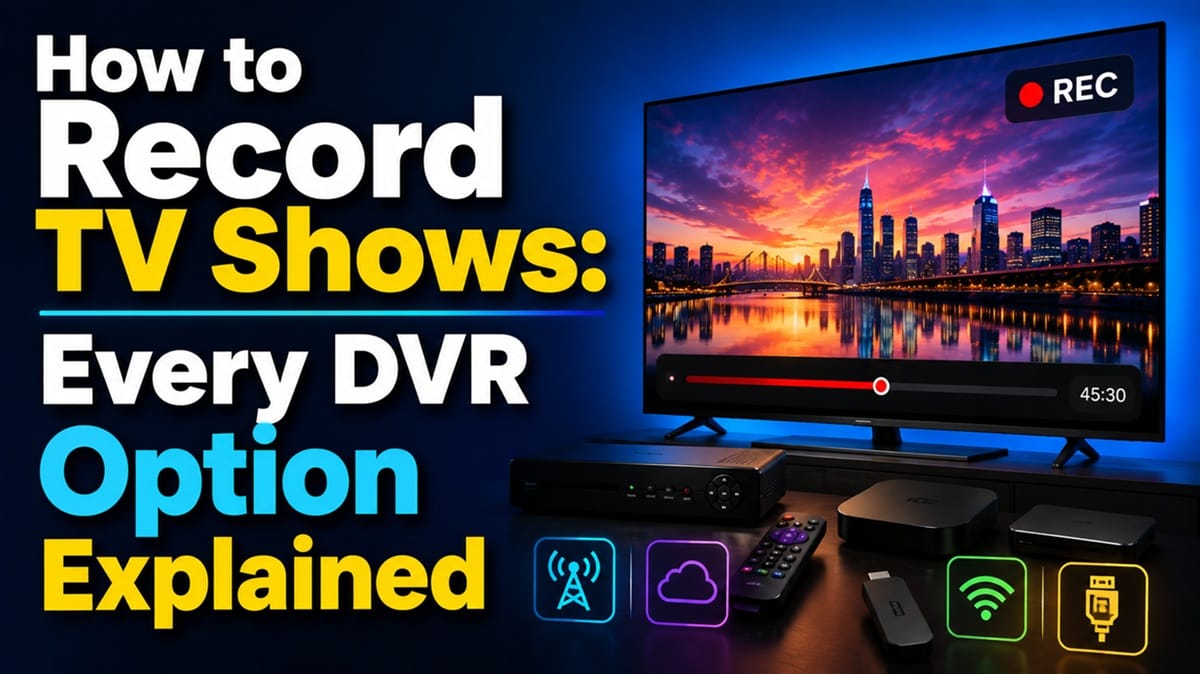
How to Record TV Shows: Comparing Every DVR Method for Streaming and Live TV
Last updated: August 2026
🕒 8 min read
Disclosure: GearPulse360 is a participant in the Amazon Associates Program. Some pages on this site contain affiliate links, and we may earn a commission from qualifying purchases at no extra cost to you.
You just found out the episode you wanted aired an hour ago, and there’s no cable box in sight to blame for missing it. That’s the moment most people start searching for how to record TV shows in the first place — not out of curiosity, but because something already slipped past them once.
Based on editorial research into how modern DVR options actually work, “recording TV” no longer means one specific box from one specific provider. It can mean a USB drive plugged into the TV itself, a cloud library built into a streaming service, or a small standalone device sitting next to your router.
The common misconception is that you need a cable subscription to record anything at all — you don’t.
This guide covers three practical routes: recording directly on a smart TV, using a streaming service’s built-in cloud DVR, and adding a dedicated over-the-air DVR device. If you’re also piecing together a cord-cutting setup for the first time, our guide on how to connect your phone to a TV covers the casting and mirroring side of things.
Watching local channels without cable is worth understanding first too, since it decides whether you even need an antenna-based DVR at all.
Table of Contents
Quick Answer
You can record TV shows three ways: plug a USB drive into a smart TV that supports native recording, use a streaming service’s built-in cloud DVR, or add a standalone OTA DVR device for antenna channels.
- Best for: cord-cutters who want live TV saved for later without new hardware
- Not ideal for: anyone expecting every smart TV to support recording out of the box
- Key advantage: no cable subscription required for any of the three methods
- Starting price: free to low-cost, depending on the method and existing hardware
The Short Answer: How to Record TV Shows Without Cable
Every practical method for recording TV shows falls into one of three categories: recording locally on the TV itself, letting a streaming service store the recording in the cloud, or using a separate box built specifically for DVR duty.
Which one makes sense depends mostly on whether you’re recording live antenna channels, streaming-app content, or both.
Record Directly on a Smart TV (Native USB DVR)
How Smart TV Recording Works
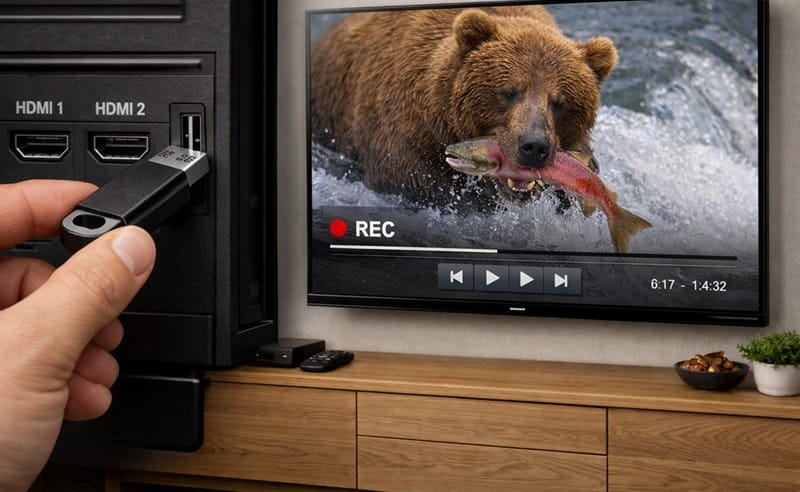
Several smart TVs let you plug in a USB hard drive and record a live broadcast directly, without any extra box.
Based on Samsung’s own setup instructions, the TV needs an antenna connection with channels already tuned in, plus a USB or portable hard drive that gets formatted specifically for that television before recording will work.
What Smart TV Recording Can’t Do
This method has real limits worth knowing before you count on it. Recording support varies by model and region, the drive is usually locked to that one TV once formatted, and most sets can only record one channel while you watch a different one — not the other way around.
Choosing a Drive That Actually Works
Not every USB drive is a good match for this job. Samsung’s own guidance recommends a USB 2.0 or later hard drive rated at 5,400 rpm or higher, formatted specifically for the TV, with a practical ceiling around 2TB — flash drives and RAID-style enclosures typically aren’t supported at all.
Formatting the drive for the TV also erases whatever was already on it, so this isn’t the place to reuse a drive full of other files.
Use a Streaming Service’s Cloud DVR
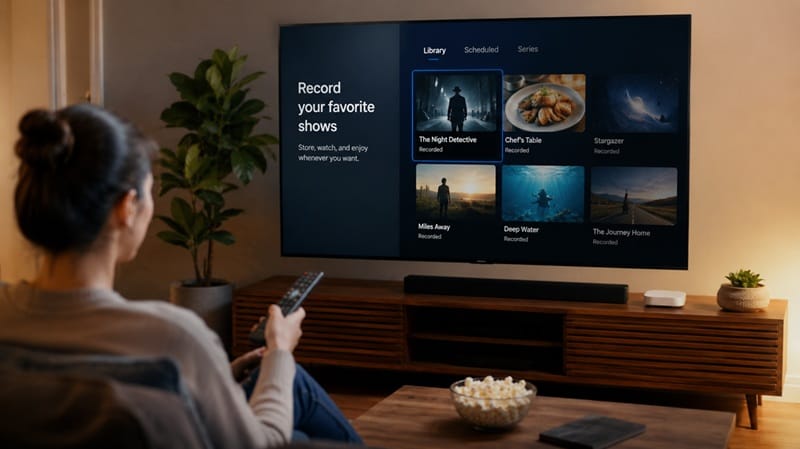
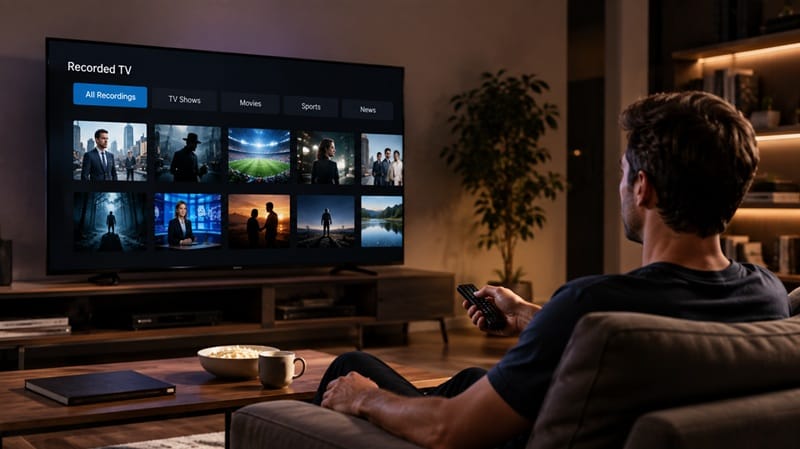
Several live TV streaming services build a cloud DVR into the subscription itself, so recordings live on the provider’s servers instead of a drive in your living room. That means no hardware to plug in, and recordings follow your account across devices.
To actually use one, the TV needs the streaming app installed and signed in first — installing apps on a smart TV is the step people skip and then can’t figure out why their “DVR” isn’t showing up anywhere.
Once the app is set up, recording is usually a single tap on whatever you want saved.
If you’re comparing which current TVs make streaming setups like this the easiest, our best OLED TVs for streaming roundup breaks down app support and interface speed across this year’s models.
A recording is only as sharp as the panel replaying it — motion smearing or a washed-out contrast ratio shows up in a saved episode just as much as a live one. If picture quality is already part of what’s pushing you toward a new TV, our best OLED TVs of 2026 roundup walks through how this year’s models handle that, plus which ones make the streaming apps you’d be recording from easiest to use.
Add a Dedicated Streaming DVR Device
For anyone who wants antenna channels recorded without relying on the TV’s own hardware, a standalone DVR device is the more flexible option. These connect to an antenna, tune in local channels independently of the TV, and store recordings on their own storage rather than a drive plugged into the television.
Setup generally follows the same pattern regardless of brand: connect the antenna to the device, connect the device to your home network, run the included setup app to scan for channels, then browse and schedule recordings from that app instead of the TV’s own menu. The TV itself just displays whatever the device sends it.
The main trade-off against smart TV recording is cost versus flexibility. A dedicated device adds another piece of hardware and, in some cases, its own storage drive to manage — but it isn’t tied to a single television, so recordings stay accessible even if you replace the TV itself later.
What This Means for You in Practice
Who Should Pay Attention to This
Cord-cutters relying on antenna channels get the most value from a dedicated DVR device, since it’s built for that job specifically rather than treating recording as a bonus feature. Anyone already paying for a live TV streaming service should check whether cloud DVR is included before buying any extra hardware at all.
Households juggling more than one TV in the house are also worth calling out separately. A streaming service’s cloud DVR follows the account across every screen, while a USB drive plugged into one smart TV only works for recordings made on that specific set.
Who Doesn’t Need to Worry
If most of what you watch is already on-demand — a show’s full back catalog sitting in a streaming app’s library — none of this applies. On-demand libraries don’t disappear the way live broadcasts do, so there’s nothing to schedule or capture in the first place.
FAQs: How to Record TV Shows
How do I record TV shows without a cable box?
You have three practical routes: a USB drive plugged directly into a supported smart TV, a streaming service’s built-in cloud DVR, or a standalone antenna DVR device.
Several live TV streaming services now advertise unlimited cloud DVR storage as part of the subscription itself, which removes the “running out of space” problem that older physical DVR boxes had.
Do all smart TVs let you record live TV?
No — native recording support depends entirely on the specific model and, in some cases, the region it was sold in. Always check that specific TV’s manual or support page before buying a drive for it, since the hardware can be present without the recording feature being enabled.
What’s the cheapest way to record TV shows?
Recording directly to a USB drive on a supported smart TV is usually the lowest-cost option, since it only requires a drive you may already own. A streaming service’s cloud DVR is free to use if it’s already bundled into a subscription you’re paying for anyway.
Do I need a separate streaming device to record shows on my LG OLED TV?
Not by default. Our guide on streaming devices for LG OLED TVs covers when webOS already handles everything you need and when adding a separate box actually helps.
Can I record antenna channels without paying any monthly fee?
Yes — both native smart TV USB recording and most standalone antenna DVR devices work with a one-time hardware cost and no ongoing subscription, since over-the-air broadcasts themselves are free. Cloud DVR through a streaming service is the exception, since that comes bundled into a paid subscription instead.

iYaiii
Editor, GearPulse360
iYaiii is the editor and founder of GearPulse360, specializing in TV reviews and consumer electronics. He researches every recommendation before publishing, based on manufacturer documentation and official specifications.
✅ Based on manufacturer support documentation and editorial research — last verified August 2026