How to Mount a TV on a Wall: A Step-by-Step Guide for Any Setup
Last updated: August 2026
🕒 8 min read
Disclosure: GearPulse360 is a participant in the Amazon Associates Program. Some pages on this site contain affiliate links, and we may earn a commission from qualifying purchases at no extra cost to you.
The two fears that stop most people before they ever pick up a drill are simple: what if the mount isn’t rated for the TV, and what if the anchor point isn’t actually a stud. Both are legitimate, and both are avoidable with the right order of operations — which is exactly where most rushed installs go wrong.
We put this guide together based on manufacturer mounting specifications and the VESA standard that governs how TVs and mounts are built to match up, so the steps below reflect how the hardware is actually designed to work rather than a generic “drill here” checklist.
This walkthrough covers how to mount a TV on a wall using the general procedure that applies to almost any TV and any standard wall mount. If your wall is brick, concrete, or plaster instead of drywall over studs, the fastening hardware changes — how to install a TV wall mount goes deeper on wall-type-specific anchors and tools once you’ve confirmed the basics here.
Table of Contents
The Short Answer
To mount a TV on a wall: confirm the mount’s VESA pattern and weight rating match your TV, find and mark the studs (or plan for wall anchors on non-stud walls), attach the wall plate level and secure to at least two studs, attach the bracket arms to the back of the TV, then lift the TV onto the wall plate and lock it in place. The full process below walks through each of those steps in order, plus how to avoid the most common mistakes that cause TVs to come loose later.
What You Need Before You Start
Checking Your TV’s VESA Pattern and Weight Rating
Every TV has a mounting hole pattern on the back, governed by VESA’s FDMI standard. The standard groups displays into size-based categories, and each one sets both the hole configuration and a maximum weight for that range, based on VESA’s FDMI Overview:
- Displays up to 22.9 inches: four-hole pattern, rated up to 30.8 lbs
- 23–30.9 inch displays: six-hole pattern, rated up to 50 lbs
- 31–90 inch displays (most TVs): multi-hole pattern, rated up to 250 lbs
Which category your TV falls into is what actually determines both which mounts fit and how much weight they’re built to hold — it’s listed on the TV’s spec sheet or manufacturer support page, not on the box.
Weight rating matters just as much as hole spacing. A mount rated for a 55-inch TV won’t necessarily hold a heavier 65-inch model safely, even if both fall in the same VESA size category — check the mount’s stated maximum weight against your TV’s actual weight, not just its screen size.
Tools and Hardware Checklist
You’ll generally need: a stud finder, a drill with the correct bit size for your mount’s bolts, a level, a pencil for marking, a screwdriver, and a second person to help lift the TV onto the bracket. Most wall mounts ship with the bolts needed to attach to the TV itself, but the wall-anchoring hardware — lag bolts for studs, or toggle anchors for non-stud sections — sometimes needs to be purchased separately depending on your wall type.
The Step-by-Step Process to Mount a TV on a Wall
Finding and Marking Your Studs
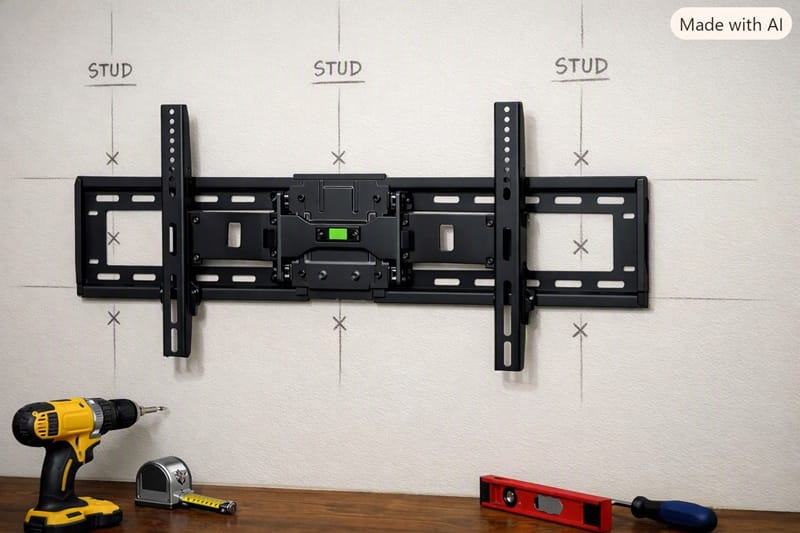
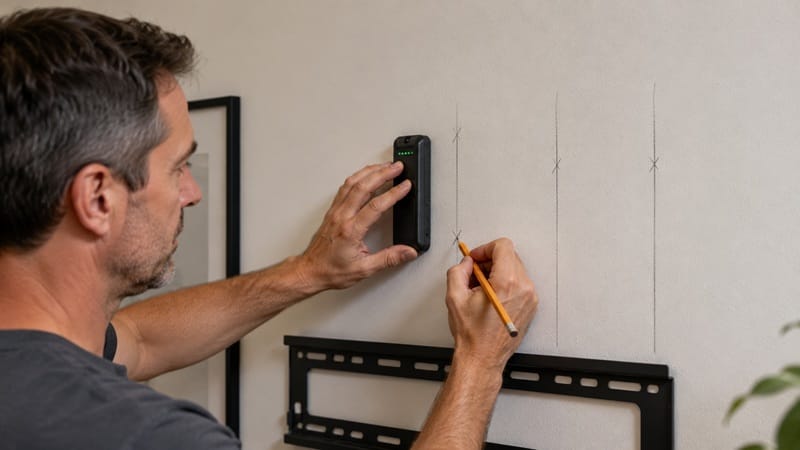
Run the stud finder horizontally across the section of wall where you plan to mount, and mark both edges of each stud you detect. Most U.S. interior walls use studs spaced 16 inches apart on center — though this can vary, so a stud finder is the reliable way to confirm before drilling. Mark the center of each stud, not just an edge, since that’s where the lag bolt needs to land.
Before you drill anything, it’s worth deciding how high the mount should sit — that’s a separate question from finding studs, and how high should a TV be mounted walks through eye-level and viewing-distance math if you haven’t settled on a height yet.
Attaching the Wall Plate and Hanging the TV
Hold the wall plate against the marked stud centers, check it with a level, and mark the bolt holes through the plate itself. Drill pilot holes into the stud centers, then bolt the plate to the wall — snug, not overtightened, since stripping the hole in a stud is one of the more common ways a mount ends up loose months later.
With the wall plate secure, attach the bracket arms to the back of the TV using the bolts and spacers included with the mount, matching the VESA holes you confirmed earlier. With a second person supporting the TV’s weight, lift it onto the wall plate and follow the mount’s specific locking mechanism — most tilt and full-motion mounts use a safety latch or locking pin that needs to click or click into place before you let go.
Mounting only makes sense for the TV you already plan to keep — if part of you is still weighing whether to replace it instead of remounting what you own, that call is worth settling before you buy hardware built around this set’s specific VESA size, not after. Our best 4K TVs of 2026 roundup is a reasonable place to work through that decision.
Common Mistakes When You Mount a TV on a Wall
Anchoring Into Only One Stud
The single most common failure isn’t a bad mount — it’s a mount that was never actually anchored into a stud, or was anchored into only one stud instead of two. A single anchor point can hold for weeks before the drywall around it starts to give, which is why it often looks fine right up until it doesn’t.
Overtightening the TV-Side Bolts
Overtightening bolts into the TV itself is a quieter risk. TV housings are usually a thin composite around the VESA inserts, and cranking a bolt past snug can crack the mounting point from the inside, something that won’t show until the TV is already hanging and under load.
Ignoring the Mount’s Weight Rating
Skipping the weight-rating check because “it looked close enough” on the box is the third recurring pattern — a mount rated slightly under a TV’s actual weight may hold initially, then sag or fail once the plastic or metal components fatigue over months of steady load.
What This Means for You in Practice
Who Should Pay Attention to This Guide
Anyone mounting a TV for the first time, or moving an existing TV to a new wall, benefits from working through the VESA and weight checks before touching a drill. It’s also worth a careful read if you’re mounting a significantly larger or heavier TV than the wall has held before — the studs haven’t changed, but the load they’re carrying has. If you’re deciding what size fits your space in the first place, what are the dimensions of a TV breaks down width and weight by screen size before you buy a mount to match.
Who Doesn’t Need to Worry About This
If you’re using a mount and TV combination the manufacturer explicitly pre-tested and sold as a matched kit, or you’re hiring a professional installer, most of the checks above are handled for you. The core mechanics — VESA fit, weight rating, stud anchoring — still apply, but someone else is verifying them on your behalf.
FAQs: How to Mount a TV on a Wall
Do I need to hit two studs to mount a TV on a wall safely?
For most standard wall mounts, yes — anchoring into two stud points is the general installation practice most mount manufacturers build their instructions around, since it’s what their hardware is designed to bear weight through. This is separate from the VESA mounting standard itself, which defines the bolt hole-pattern spacing between the TV and the bracket — not how the bracket anchors into your wall. A single stud can work for very light TVs on certain mount designs, but check your specific mount’s included instructions rather than assuming.
What size lag bolts or screws do I need for a TV wall mount?
This depends on the specific mount, not the TV — the mount’s included manual will specify bolt diameter and length for stud mounting, since it’s sized to the plate’s hole pattern and the stud’s typical depth. Most wall mounts include the wall-side hardware needed for standard stud mounting.
Do TV wall mounts come with all the screws included?
Usually the TV-side bolts (for attaching the bracket to the back of the TV) are included, since those are standardized to VESA hole sizes. Wall-side hardware for stud mounting is often included too, but anchors for non-stud sections of wall — like toggle bolts for drywall gaps — sometimes need to be bought separately depending on the mount.
Is mounting a TV on the wall myself actually hard?
The mechanical steps are manageable for most people with basic tools, but the process rewards patience over speed — rushing the stud-finding step is where most DIY mounts run into trouble later. If your wall is brick or concrete instead of drywall over studs, the tools and technique change enough that it’s worth reading our full wall-type-specific installation guide (linked above) before starting.
Can I mount a TV in a corner or on an angled wall?
Yes, with a mount specifically designed for corner installation — a standard flat wall mount isn’t built for the angle and won’t sit level. Corner-rated mounts account for the offset differently, so check the mount’s listing before assuming a standard bracket will work.

iYaiii
Editor, GearPulse360
iYaiii is the editor and founder of GearPulse360, specializing in TV reviews and consumer electronics. He researches every recommendation before publishing.
✅ Based on manufacturer specifications and VESA standard documentation — last verified August 2026