How to Turn Brightness Down on Roku TV: The Setting Most People Miss
Last updated: August 2026
🕒 6 min read
Disclosure: GearPulse360 is a participant in the Amazon Associates Program. Some pages on this site contain affiliate links, and we may earn a commission from qualifying purchases at no extra cost to you.
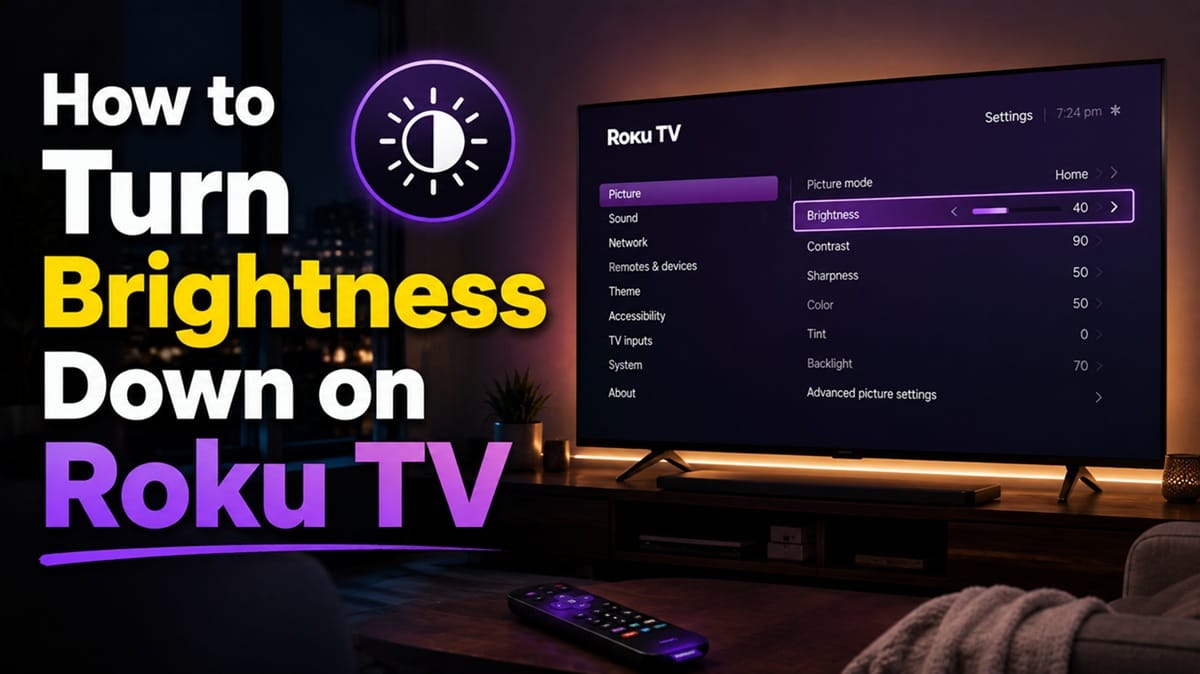
Most people expect a Roku TV to have one brightness dial: turn it up, turn it down, done. So it’s confusing the first time you drag the “Brightness” slider all the way up and the picture barely changes — or you turn it down expecting a dimmer screen and the overall light output looks almost identical. That’s not a bug. Roku splits what most of us mean by “brightness” across three separate settings, and only one of them is actually labeled Brightness.
We put this together by mapping Roku’s own settings-menu structure against RTINGS’ published calibration data for Roku-platform TVs — including the Roku Select Series and TCL’s Roku-branded 4 Series — which consistently shows Backlight, not Brightness, doing most of the work in overall screen light output. Brightness mainly shapes how much detail survives in near-black shadows.
The fix itself is a short menu path, but knowing where to stop matters more than the path — Backlight and Brightness live in different sub-menus and answer different complaints, and mixing the two up is exactly why the slider seems to “do nothing” for so many people. If you’re on Roku’s smart-TV platform specifically (rather than a Roku streaming stick), our piece on TCL owners switching to Roku TV after Google TV problems is worth a look if you’re deciding between platforms on the same hardware.
Table of Contents
The Short Answer
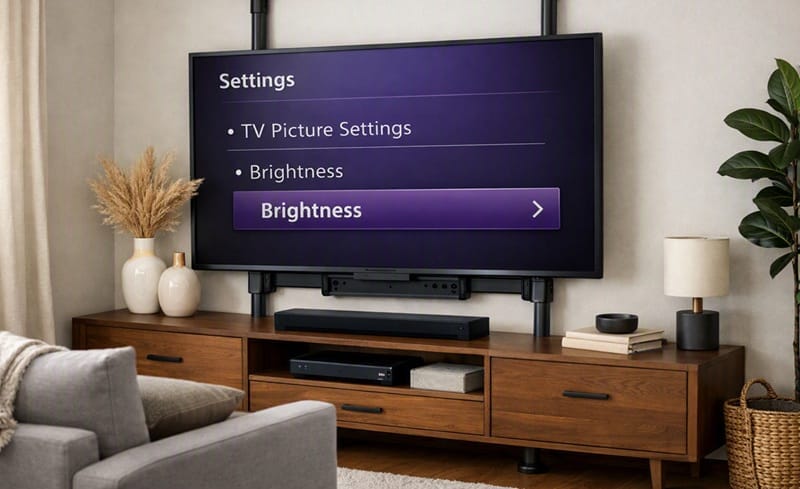
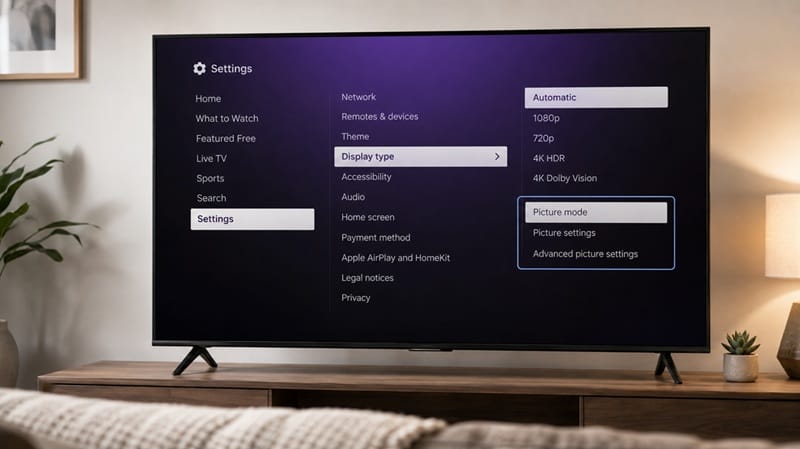
To turn brightness down on a Roku TV, go to Settings → Display type → Picture settings → Picture mode, then open Expert picture settings to adjust Backlight (overall light output) and Brightness (shadow detail) separately. Backlight is almost always the setting you actually want when the picture looks “too bright” or “too dim” overall — Brightness alone won’t change that much.
What “Brightness” Actually Controls on a Roku TV
Backlight vs. Brightness vs. Picture Mode
Roku’s Expert picture settings menu treats these as three different jobs, not one slider with three names. Backlight controls how much light the panel’s backlight or local-dimming zones put out overall — this is the setting that makes the whole screen feel brighter or dimmer at a glance. Brightness, in the strict calibration sense Roku uses, adjusts the black level — how much detail is visible in the darkest parts of the image without crushing shadows to pure black or washing them out to gray.
Picture Mode sits above both of them. Switching from Vivid to Movie, for example, resets a whole cluster of settings — including Backlight — to that mode’s factory targets, which is why a Brightness change made in one mode can look like it “disappeared” after switching modes. RTINGS’ calibration data for the TCL 4 Series Roku TV shows this pattern clearly: their tested Backlight value differs substantially between picture modes, while true Brightness stays within a narrower band across the same modes.
Why This Mislabeling Trips People Up
Most other consumer electronics use “brightness” as a catch-all word for how bright the whole screen looks — a phone display, a monitor, a lamp dimmer. Roku’s menu uses the calibration industry’s stricter definition, where Brightness and Backlight are deliberately separate controls. Neither is wrong; they’re just answering different questions, and the everyday word doesn’t map cleanly onto either.
Step-by-Step: How to Turn Brightness Down on Roku TV
The path is the same whether you’re turning it down for a dark room or up for a sunlit one — you’re just moving the slider in a different direction.
1. Open the Picture Settings Menu
Press the Home button, go to Settings → Display type (this may show as “TV picture settings” or just “Picture” depending on your model year), then select Picture mode.
2. Pick a Starting Picture Mode
Movie or Filmmaker Mode (where available) gives the lowest default Backlight and is the easiest starting point for a dark room. Vivid or Standard runs brighter by default and suits a sunlit living room. Whichever you pick, the adjustments below apply on top of it.
3. Open Expert Picture Settings and Adjust Backlight First
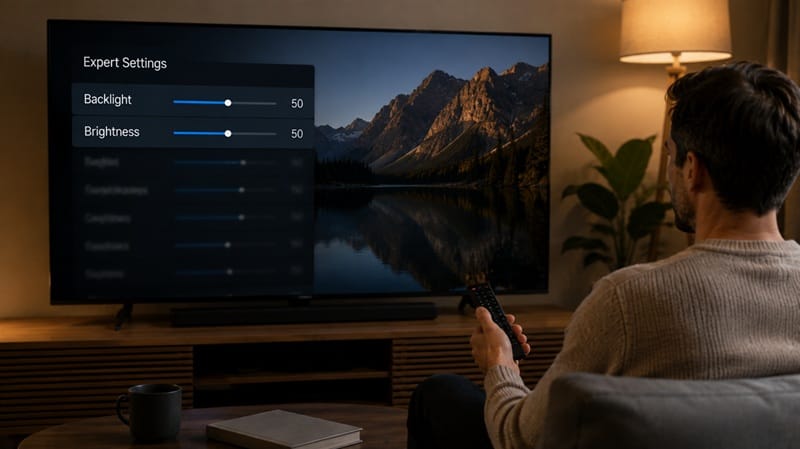
Inside Expert picture settings, find Backlight and move it down for a dimmer overall picture, or up for more brightness. This is the change most people are actually looking for when they search for how to turn brightness down on a Roku TV. If our piece on TCL budget TV picture quality and HDMI features is relevant to your specific model, it’s worth a read alongside this — panel-level picture quality varies more between budget and mid-range Roku-platform sets than the settings menu alone can fix.
4. Fine-Tune Brightness Separately
Once Backlight is where you want it, adjust Brightness only if shadow detail looks off — too much black crush (dark scenes losing detail) or too washed out (blacks looking gray). Small moves here go a long way; there’s rarely a reason to push this slider far from its default.
If you’re comparing a Roku-platform TV against an OLED model for your next purchase, our best 4K TVs of 2026 roundup breaks down how backlight and contrast performance stack up across this year’s non-OLED lineup, alongside gaming response and price tier.
Common Mistakes That Make the Slider Seem “Broken”
A few settings quietly override manual Backlight and Brightness changes, which is usually why people think the adjustment “isn’t sticking.”
Automatic Brightness or Ambient Light Sensor
Some Roku TV models include an ambient light sensor that adjusts Backlight on its own based on room lighting. If this is on, a manual Backlight change can look like it reverts a few seconds later. Turning this feature off (usually under Picture settings or Energy settings, naming varies by manufacturer) lets your manual setting hold.
HDR Content Overriding SDR Settings
Roku TVs store separate picture settings for SDR and HDR content. Adjusting Backlight while watching a standard-definition or SDR stream won’t change how an HDR movie looks, since HDR uses its own saved profile — you’ll need to adjust it again while HDR content is actually playing.
Per-Input Settings
Picture settings are often saved per HDMI input, not globally. A change made while watching a streaming app might not carry over to a game console or cable box plugged into a different port.
What This Means for You in Practice
Who Should Pay Attention to This
This matters most if you just unboxed a Roku-platform TV and the out-of-box picture looks too dim, too harsh, or inconsistent between streaming apps and a connected console. It’s also relevant if you’re deciding between panel types before buying — Roku TVs are sold on LED, QLED, and Mini-LED hardware, not OLED, and how bright a panel can realistically get is one of the bigger differences between those technologies. Our OLED vs LED comparison breaks down how backlit LED-based sets like most Roku TVs handle overall brightness and contrast differently from self-emissive OLED panels.
Who Doesn’t Need to Worry
If your picture already looks the way you want it in the room and lighting conditions you normally watch in, there’s no reason to go digging through Expert picture settings. These controls exist for people actively troubleshooting a specific brightness complaint, not as routine maintenance.
FAQs: Roku TV Brightness
How do I turn brightness down on a Roku TV?
Go to Settings → Display type → Picture settings → Picture mode, open Expert picture settings, and lower Backlight for an overall dimmer picture. RTINGS’ general TV calibration guide covers the same Backlight-versus-Brightness distinction in more depth if you want to go further than the basic adjustment.
Why doesn’t changing Brightness make my Roku TV look dimmer?
Because Brightness on a Roku TV adjusts near-black shadow detail, not overall screen light output — Backlight is the setting that actually controls how bright the whole picture looks. This is the single most common mix-up in this menu.
Does lowering Backlight on a Roku TV save power?
Yes — a lower Backlight setting reduces how hard the panel’s light source works, which typically lowers power draw somewhat, though the exact savings depend on the specific model and panel type.
Will these settings work the same on a budget Roku TV like a Hisense model?
The menu structure — Backlight, Brightness, and Picture Mode as separate controls — is consistent across Roku-platform TVs regardless of manufacturer, though the available range and default values differ by model. Our Hisense 32QD4HSR review covers how backlight and picture performance hold up on one of the more budget-friendly Roku TV options currently available.
Do Roku TV brightness settings carry over after a software update?
Generally yes — picture settings are tied to your saved profile per input and picture mode, and a routine software update shouldn’t reset them. A factory reset or picture-mode change, on the other hand, will return Backlight and Brightness to that mode’s defaults.

iYaiii
Editor, GearPulse360
iYaiii is the editor and founder of GearPulse360, specializing in TV reviews and consumer electronics. Based on Roku’s own settings-menu structure and RTINGS’ published calibration data for Roku-platform TVs, cross-checked before publishing.
✅ Based on spec analysis and RTINGS data — last verified August 2026