OLED TV eARC CEC Not Working? Here’s How to Actually Fix It
Last updated: July 2026 | 🕒 8 min read
Disclosure: As an Amazon Associate I earn from qualifying purchases. This article contains affiliate links — we may earn a small commission if you buy through them, at no extra cost to you.
You plugged your soundbar into the HDMI port marked “eARC,” turned Control for HDMI on, and the audio still isn’t coming through — or it worked for a week and then quietly stopped. If that’s where you landed here from, you’re not dealing with a defective TV. You’re dealing with two connected standards, eARC and CEC, that are supposed to negotiate a “handshake” between your TV and your audio system every time either device wakes up, and that handshake is fragile by design.
This is a genuinely common source of confusion because the symptoms look like a hardware fault — no sound, a soundbar that won’t turn on with the TV, audio that drops mid-show — when the actual cause is almost always a settings mismatch, a cable that doesn’t meet spec, or a handshake that failed to re-establish after a firmware update or a power cycle.
This article covers what eARC and CEC actually do, why an OLED TV’s display technology has no bearing on whether they work, and a step-by-step order of troubleshooting steps to try before assuming you need a replacement cable or a new soundbar.
Table of Contents
The Short Answer: Why eARC or CEC Stops Working on an OLED TV
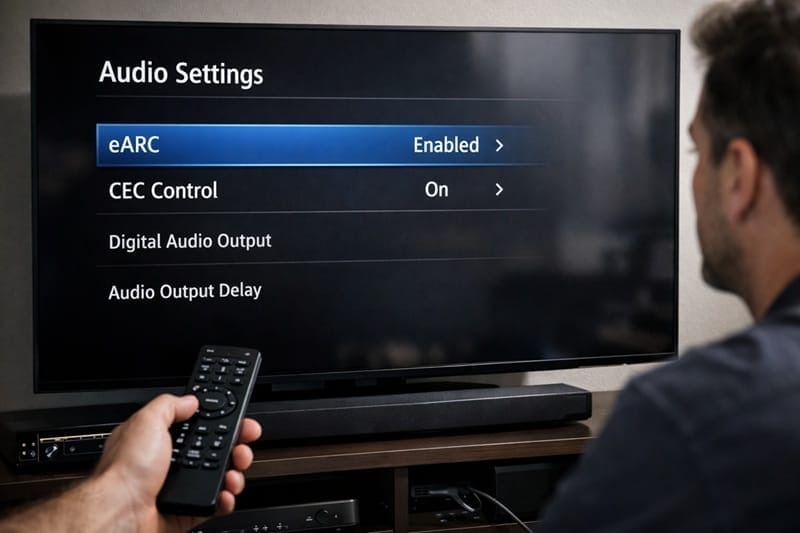
eARC and CEC are two separate features that share the same HDMI port, and either one can fail independently. eARC carries the audio itself; CEC handles device control (turning your soundbar on with the TV, syncing volume). When either “not working” symptom shows up, it’s almost always one of four causes: Control for HDMI/CEC is switched off on one device, the HDMI cable doesn’t meet the bandwidth spec eARC needs, the two devices are plugged into the wrong port, or a stale handshake needs a power cycle to reset. Work through those four in order before assuming a hardware fault.
What eARC and CEC Actually Do (and Why They’re Different Problems)
eARC handles audio, not control
eARC — Enhanced Audio Return Channel — is the part of the HDMI 2.1 specification that lets your TV send audio back down the same cable it receives video on, instead of needing a separate optical or audio cable to your soundbar. It’s the piece responsible for whether you get full, lossless Dolby Atmos or a compressed fallback.
CEC — Consumer Electronics Control — is a different, older layer that lets HDMI-connected devices talk to each other for things like one-remote power and volume control. Sony calls its version BRAVIA Sync; other manufacturers use their own branded names. eARC doesn’t strictly require CEC to carry audio, but on many real-world setups the two get tangled together in the TV’s menu system, which is why turning one off can appear to break the other.
Why the handshake breaks
According to Sony’s own troubleshooting documentation for the ARC/eARC feature, a working connection depends on several things lining up at once: both devices need current firmware, the cable needs to be plugged into the port specifically labeled ARC or eARC (not just any HDMI input), and the HDMI cable itself needs to meet the bandwidth the connection is asking for. That’s a lot of independent conditions for a “plug and play” feature, and it’s part of why eARC/CEC issues are a recurring troubleshooting topic rather than a one-off glitch tied to a specific TV model.
Why This Still Matters in 2026
eARC/CEC issues aren’t tied to one brand or panel type
It’s worth being clear about what the evidence actually supports here: eARC and CEC are open HDMI standards, not something any single TV manufacturer invented, and how reliably they work depends on how each company implements that shared standard in its firmware. Sony’s own support documentation is unusually detailed on ARC/eARC troubleshooting, which suggests it’s a connection point the company fields real support volume on. That’s a useful data point, but it’s not the same as evidence that every OLED brand has an identical failure rate — treat brand-specific claims you see elsewhere with the same caution.
If you’re shopping with this specifically in mind, our look at whether Sony’s OLED lineup is worth it in 2026 covers where the brand’s connectivity documentation stands out.
Newer soundbars lean on eARC more, not less
As more soundbars add lossless Dolby Atmos and DTS:X support, they depend on eARC specifically (not the older, lower-bandwidth ARC) to carry that audio. A cable or port that “worked fine” for basic stereo sound over ARC can fall short once you upgrade to an eARC-dependent soundbar, which is a frequent trigger for “eARC not working” problems right after a soundbar upgrade rather than a TV problem.
Before you start swapping cables, it helps to know what a normal, working setup should look like on paper. Our best OLED TVs of 2026 roundup notes each pick’s HDMI 2.1/eARC support directly in the spec table, which is worth checking if you’re troubleshooting a brand-new pairing rather than a longstanding one.
How to Fix OLED TV eARC CEC not working: Step-by-Step
Work through these in order — most eARC/CEC failures resolve in the first three steps, and the remaining steps exist for the harder cases.
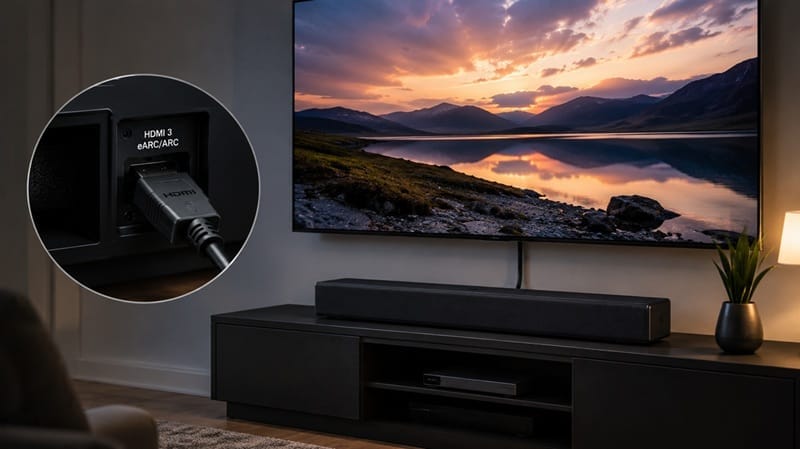
- Confirm you’re using the right port. Most TVs only support eARC on one specific HDMI input, usually labeled “eARC” or “ARC” on the back panel. Plugging your soundbar into any other HDMI port will not carry audio back to it, regardless of settings.
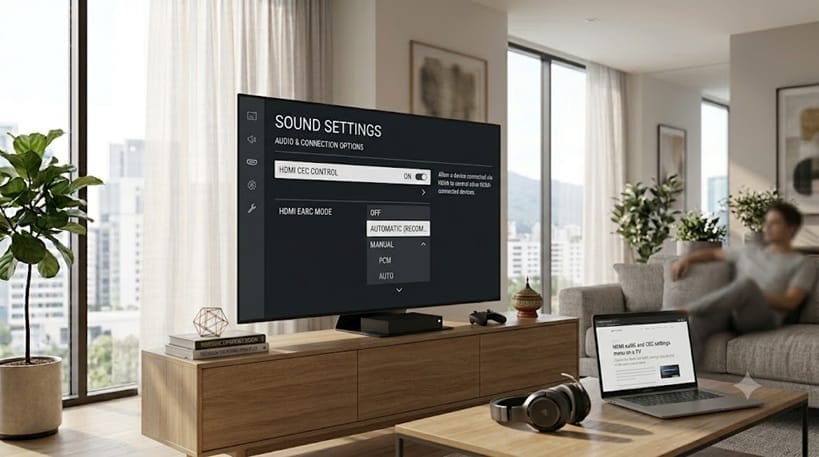
- Turn Control for HDMI (or your brand’s CEC name) on for both devices. This needs to be enabled in the menus of the TV and the soundbar or receiver — one-sided settings are a common miss.
- Set the TV’s speaker output to “Audio System,” not “TV Speakers.” Simply connecting the cable doesn’t redirect audio automatically; the TV needs to be told where to send it.
- Check your HDMI cable. eARC needs a cable that meets the “Ultra High Speed” or equivalent high-bandwidth spec — an older or budget HDMI cable that worked fine for basic ARC audio can bottleneck or fail entirely under eARC’s higher bandwidth demands.
- Power-cycle both devices together. Turn off the TV and the soundbar, unplug both from power for about a minute, then reconnect the HDMI cable and power both back on — TV first, then the audio device. This resets a stuck handshake, which is one of the more common causes of a connection that “was working yesterday.”
- Update firmware on both devices. eARC/CEC bugs are frequently addressed in firmware updates on both the TV and the audio device side, and a mismatched software version between the two is a common cause of dropped handshakes.
What This Means for You in Practice
Who Should Pay Attention to This
If you’re actively shopping for a soundbar to pair with an OLED TV, or you’ve had intermittent audio dropouts you’ve been chalking up to “just one of those things,” this is worth working through methodically rather than assuming a hardware replacement is the fix. It’s also relevant if you’re comparing specific TV lineups on connectivity — our Sony OLED roundup is a useful reference point if you’re narrowing down models with this specifically in mind.
Who Doesn’t Need to Worry
If your current TV-and-soundbar pairing has worked reliably for months without dropouts, there’s no reason to preemptively troubleshoot or replace cables. eARC/CEC problems are a “fix it if it happens” category, not something to budget maintenance time for on a working setup.
FAQs: OLED TV eARC/CEC Troubleshooting
Why is my OLED TV’s eARC or CEC not working with my soundbar?
It’s almost always a settings or cable issue rather than a defect — the two devices need matching HDMI-CEC settings, the correct labeled port, and a cable that meets eARC’s bandwidth requirements. RTINGS’ technical breakdown of how eARC works is a useful independent reference if you want to understand the underlying handshake before troubleshooting.
Is eARC not working the same problem as CEC not working?
No — they’re related but separate. eARC failing means you likely have no audio or reduced audio quality; CEC failing means device control (one-remote power/volume) doesn’t work, even if audio itself is fine. It’s possible for one to work while the other doesn’t.
Do I need a special HDMI cable for eARC to work?
Yes, in most cases. Standard older HDMI cables often can’t carry the bandwidth eARC needs for high-resolution audio formats; look for cables labeled “Ultra High Speed” or explicitly rated for HDMI 2.1 to avoid this becoming your bottleneck.
Will a firmware update fix eARC or CEC problems?
It can — manufacturers regularly patch HDMI-CEC and eARC handshake bugs in firmware, and a version mismatch between your TV and soundbar is a common cause of connection drops. Checking for and installing pending updates on both devices is a low-effort step worth doing before more invasive troubleshooting.
Should I just switch to optical audio instead of eARC?
Optical is a reasonable fallback if you’ve exhausted troubleshooting steps and need audio working immediately, but it can’t carry the newer lossless formats (like Dolby TrueHD-based Atmos) that eARC supports. Treat it as a temporary workaround rather than a permanent substitute if your soundbar is capable of eARC.

iYaiii
Editor, GearPulse360
iYaiii is the editor and founder of GearPulse360, specializing in TV reviews and consumer electronics. He researches every recommendation before publishing.
✅ Based on spec analysis and Sony’s official and RTINGS data — last verified July 2026