Wireless or Wired: How to Connect Phone to TV, Every Method Explained
Last updated: August 2026
🕒 8 min read
Disclosure: GearPulse360 is a participant in the Amazon Associates Program. Some pages on this site contain affiliate links, and we may earn a commission from qualifying purchases at no extra cost to you.
You’re holding your phone, looking at the TV across the room, and wondering why the video, photo, or presentation on that small screen can’t just… be on the big one. It’s a more common moment than it sounds — whether it’s a vacation photo album, a work slide deck, or a show your phone’s app doesn’t have a TV version of, at some point almost everyone needs to connect a phone to a TV. Based on editorial research into how Apple, Google, Samsung, LG, and Vizio each document this feature, the good news is that most phones and most TVs already support it natively, with no extra hardware required in the common case.
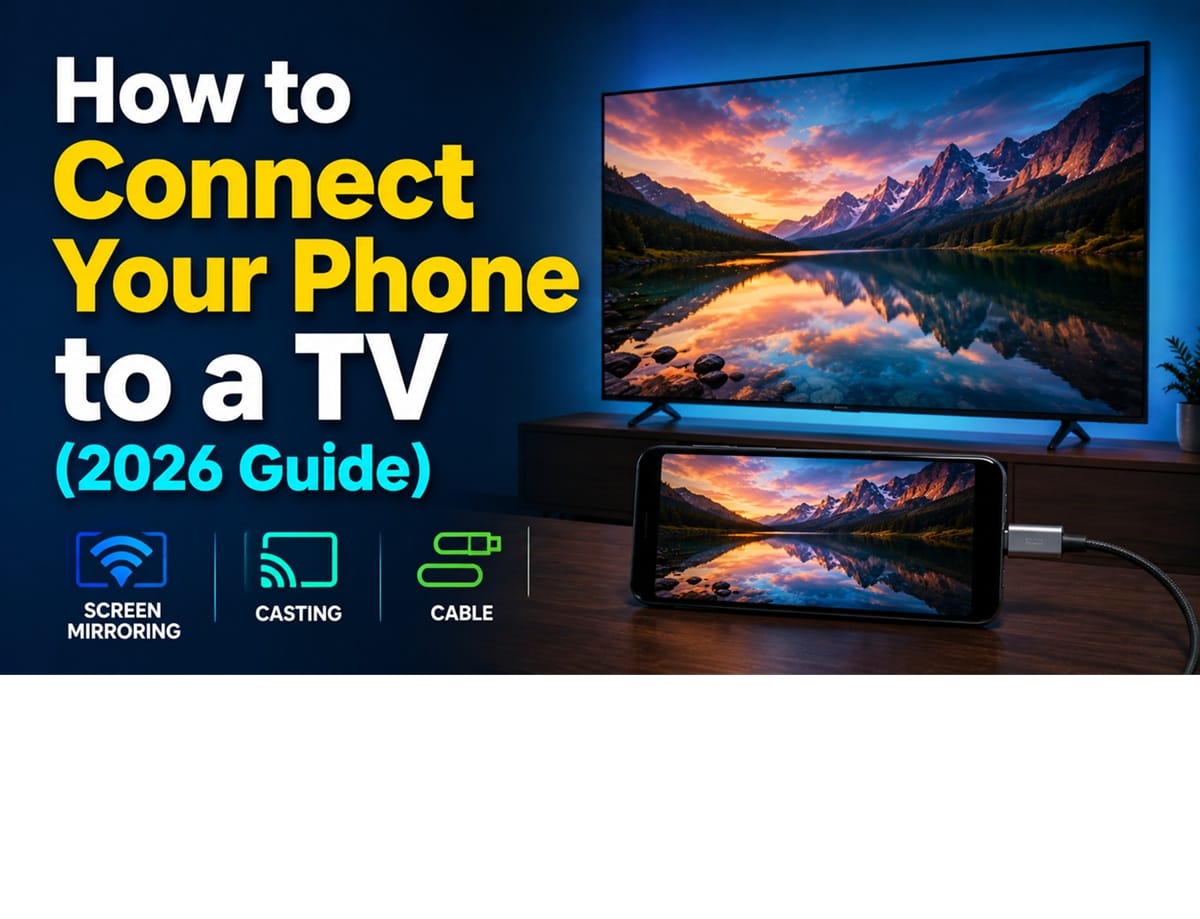
One thing worth clearing up before you pick a method: “screen mirroring” and “casting” are not the same action, even though people use the words interchangeably. Mirroring duplicates your exact phone screen on the TV, including notifications and battery icon — useful for photos or presentations. Casting sends just the video stream from an app (like a movie or a music video) to the TV, while your phone stays free to do other things. Knowing which one you actually want is what determines which method below fits your situation.
This guide covers the fastest wireless option first, since that’s what most people searching for how to connect a phone to a TV actually want, then walks through the brand-specific variations — iPhone and AirPlay, Android and Google Cast, Samsung’s Smart View, and what to do on LG, Vizio, or TCL sets — before finishing with the wired USB-C/HDMI route for when Wi-Fi isn’t an option. And if the bigger question behind all this is whether your TV’s own smart features are enough on their own, we’ve separately covered whether you actually need a separate streaming device for an LG OLED.
If you’re specifically trying to get a laptop or PC onto your TV instead of a phone, our guide on how to connect a laptop to a TV walks through that similar but distinct process, since laptops connect over HDMI far more often than phones do.
Table of Contents
The Short Answer: How to Connect Phone to TV
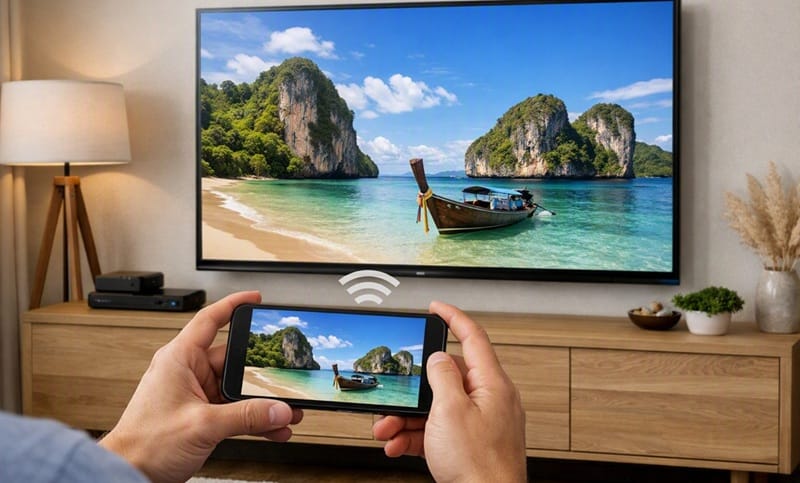
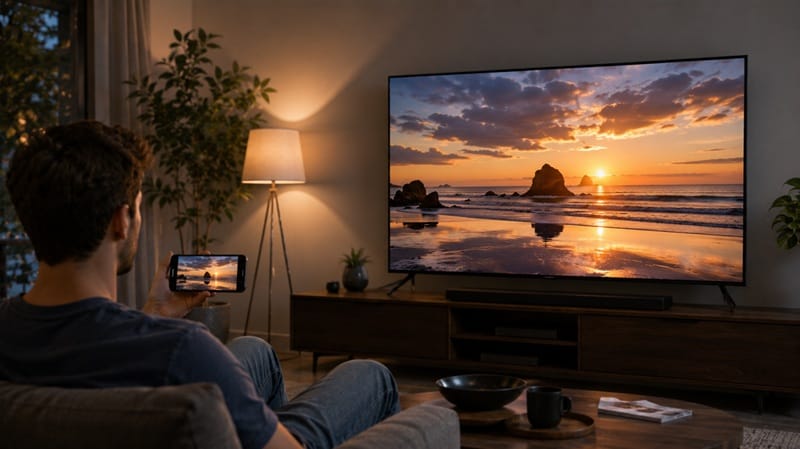
Most phones connect to most modern TVs wirelessly, using a built-in feature — no separate streaming device required. iPhones use AirPlay, Android phones use Google Cast (often labeled “Cast” inside an app), and Samsung phones can also use Smart View. Open the phone’s Control Center or Quick Settings, tap the screen-mirroring or cast icon, and select the TV from the list. If your TV is older or doesn’t support wireless mirroring, a USB-C-to-HDMI cable (or Lightning-to-HDMI for older iPhones) is the reliable fallback.
Screen Mirroring and Casting: How the Wireless Connection Works
What’s Actually Happening Behind the Scenes
Wireless mirroring and casting both rely on your phone and TV being on the same Wi-Fi network, so they can find each other and pass video over the local network rather than the internet. That’s why the single most common reason this doesn’t work on the first try is a mismatched network — a phone on 5GHz Wi-Fi and a TV still connected to an older 2.4GHz band, for example, or a guest network that isolates devices from each other for security.
Based on Samsung’s own support documentation on screen mirroring, both devices need to be on the same Wi-Fi network for mirroring to work at all — so a mismatched network name is a common, and easy to overlook, culprit worth checking before anything else. That’s a different problem from a TV that isn’t online at all — if you’re setting up a brand-new TV or one that’s just been factory reset, our guide on how to connect TV to Wi-Fi covers that starting step before any mirroring troubleshooting applies.
Why Some TVs Show Up and Others Don’t
The TV needs a receiver built in, or added, that speaks the same protocol your phone is broadcasting. Most smart TVs from the last several years ship with AirPlay 2, Google Cast (Chromecast built-in), or both already active. If your TV doesn’t appear in your phone’s cast list at all, it’s worth confirming the TV counts as a smart TV in the first place, since some entry-level and older sets are display-only and need an external streaming device to gain that capability. Our what is a smart TV guide breaks down exactly what separates a true smart TV from a display-only set.
Connecting by Brand: What Changes on iPhone, Android, Samsung, LG, and Vizio
iPhone and iPad: Using AirPlay
Open Control Center, tap Screen Mirroring, and choose your TV. If it’s grayed out or missing, the TV either isn’t on the same network or doesn’t support AirPlay — in that case, the wired option later in this guide is the fastest fix.
Android: Using Google Cast
Most Android apps that support casting — YouTube, a music app, a photo gallery — have a small cast icon in the top corner. Tapping it lists nearby TVs. For a full-screen mirror instead of one app’s video, Android’s Quick Settings panel usually has a “Cast” or “Screen Cast” tile you can add if it isn’t already there.
Samsung: Smart View
Samsung phones pair especially well with Samsung TVs through the Smart View feature, accessible from the Quick Panel. It behaves like AirPlay in practice — same network, same tap-to-select flow — but it’s Samsung’s own protocol rather than Google Cast or AirPlay, which is why it sometimes appears as a separate option even on a Samsung phone that also supports Google Cast.
LG, Vizio, and TCL TVs
LG’s webOS sets support AirPlay 2 directly for iPhones and Google Cast for Android, so the same Control Center or cast-icon steps above apply without any LG-specific app needed. Vizio’s SmartCast platform works the same way for casting, and most current TCL sets running Google TV support Cast natively as well — brand mainly changes where the setting lives in the TV’s own menu, not the steps you take on your phone.
Casting matters more on Vizio specifically than it does on LG or TCL, since does a Vizio TV have an internet browser is a common question — SmartCast doesn’t include a full web browser, so casting from your phone is the main way to get general web content onto the screen. If an app stalls out entirely once you’re mirroring to an LG set specifically, that’s usually a platform issue rather than a mirroring one — see what to do when a smart TV app won’t cooperate for the fix.
If you’re weighing whether wireless mirroring is even worth the setup time compared to just buying a new TV with better smart features built in, our best OLED TVs of 2026 roundup breaks down which current sets handle this kind of everyday connectivity well.
No Wi-Fi, No Problem: Connecting Your Phone to a TV With a Cable
Wired is the right call when you’re on a network you don’t control, when Wi-Fi mirroring keeps dropping mid-video, or when you just want a rock-solid connection for something like a long presentation.
Here’s the process:
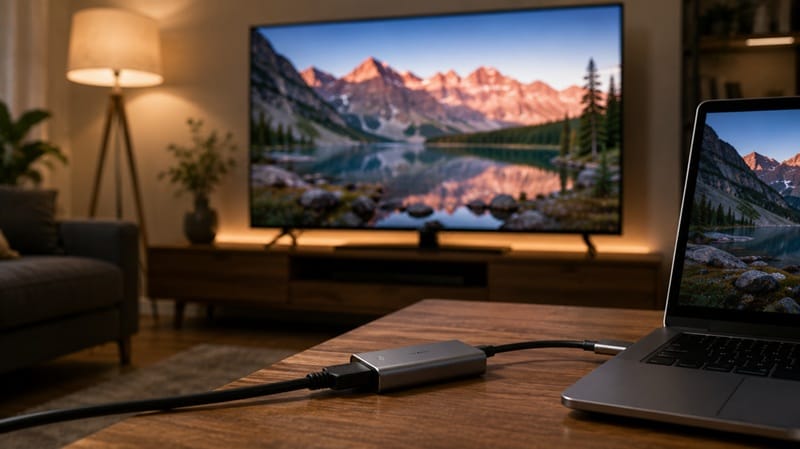
- Step 1 — Get the right adapter. Most current Android phones use a USB-C-to-HDMI cable or adapter. iPhones need a Lightning-to-HDMI (older models) or USB-C-to-HDMI (USB-C iPhone models) adapter — a plain charging cable will not carry video.
- Step 2 — Plug the adapter into your phone, then run an HDMI cable from the adapter to an open HDMI port on the TV.
- Step 3 — Switch the TV’s input to that HDMI port using the remote’s Source or Input button.
- Step 4 — Your phone’s screen should mirror automatically. If it doesn’t, check that the adapter itself supports video output — some cheap USB-C hubs are charge-only.
A wired connection also sidesteps a common visual glitch: if the picture looks off after you connect — noticeably tinted, washed out, or discolored — that’s typically a separate display issue rather than anything about the phone connection itself, and worth troubleshooting on its own.
What This Means for You in Practice
Who Should Pay Attention to This
Anyone showing photos, a presentation, or a video to a group benefits from knowing both the wireless and wired routes, since you won’t always control the Wi-Fi network you’re on. If you’re setting up a media room and want to know which current TVs handle streaming apps and casting most smoothly out of the box, our picks for the best OLED TVs for streaming compare app support and connectivity across this year’s lineup.
Who Doesn’t Need to Worry About This
If you already own a streaming device like a Fire TV Stick or Chromecast and only ever cast from within one app you use daily, the built-in casting button inside that app is simpler than any full-screen mirroring method above — you likely don’t need to change anything.
If part of what you’re mirroring or casting is live TV rather than an app, it’s worth knowing you don’t have to catch it in the moment — our guide on how to record TV shows covers the DVR options that work without a cable subscription.
FAQs: Connecting a Phone to a TV
How do I connect my phone to a TV without Wi-Fi?
Use a wired adapter — USB-C-to-HDMI for most Android phones and USB-C iPhones, or Lightning-to-HDMI for older iPhones — since wired video-out works independently of any home network. That’s the opposite of wireless mirroring: LG’s own AirPlay documentation confirms that AirPlay specifically requires both devices on the same Wi-Fi network, which is exactly the limitation a wired adapter sidesteps — making it the reliable option in a hotel room, at a client’s office, or anywhere the Wi-Fi is locked down.
Is screen mirroring the same as casting?
No. Mirroring duplicates your entire phone screen — notifications and all — on the TV. Casting sends only one app’s video stream while the rest of your phone stays usable. If a movie is playing and a text message shouldn’t pop up on the TV in front of everyone, casting is the better choice.
Why won’t my phone find my TV when I try to mirror it?
The most common cause is that the phone and TV aren’t on the same Wi-Fi network — check both settings menus and confirm the network name matches exactly, including whether one is on a 5GHz band the other isn’t joined to. A close second cause is a TV that’s older than its smart-platform features assume, which is worth confirming before troubleshooting further.
Can I connect my phone to a TV to use it like a second screen for work?
You can, though mirroring is better suited to presenting than to sustained work, since it duplicates rather than extends the display and adds a small amount of lag. If you’re doing this often, a wired USB-C-to-HDMI connection is noticeably more stable for that use case than wireless mirroring.
Does connecting my phone to a TV let me use Bluetooth speakers too?
Screen mirroring and Bluetooth audio are separate connections, so yes — you can mirror your phone’s video to the TV and separately pair a Bluetooth speaker to the TV itself for better sound than the TV’s built-in speakers, without one setup interfering with the other.

iYaiii
Editor, GearPulse360
iYaiii is the editor and founder of GearPulse360, specializing in TV reviews and consumer electronics. He researches every recommendation before publishing, based on manufacturer documentation and official specifications.
✅ Based on Apple’s, Google’s, Samsung’s, and LG’s official support documentation and editorial research — last verified August 2026.