LG TV Apps Won’t Open? Why It Happens and How to Actually Fix It
Last updated: July 2026 | 🕒 7 min read
Disclosure: GearPulse360 participates in the Amazon Associates Program. This particular article contains no affiliate links; other content on our site may.
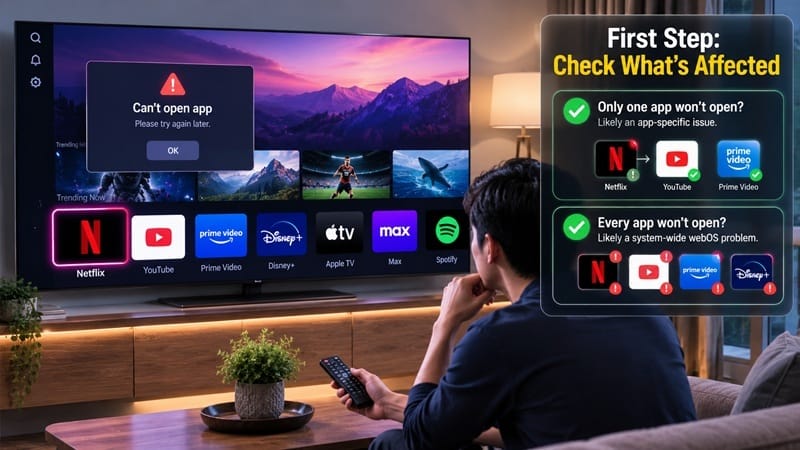
If your LG TV apps won’t open, the first thing worth figuring out isn’t “how do I fix this” — it’s “is this one app, or all of them?” Those are two different problems with two different fix paths, and mixing them up is why a lot of troubleshooting attempts (including a factory reset) end up wasting an evening for nothing.
Most people land here mid-frustration: Netflix is stuck on a spinning circle, or the whole home screen freezes the moment an app tries to launch. Based on LG’s own troubleshooting documentation, the fix almost never starts with a factory reset — that’s a last resort, not a first step, and it won’t touch problems caused by a server outage or a weak Wi-Fi signal anyway.
The distinction below matters more than it looks: which fix actually works depends entirely on whether this is a single-app problem or a platform-wide one, so the sections ahead are ordered to let you rule out each cause in turn rather than guessing. If you’re dealing with the TV feeling sluggish in general rather than apps specifically failing to launch, our LG webOS problems 2026 breakdown covers that separately — it’s a related but different symptom set.
Table of Contents
The Short Answer: One App or All of Them?
If only one app won’t open, the issue is almost always with that app — an outdated version or a corrupted install — and the fix is to update or reinstall it from the LG Content Store. If every app fails to open, or the home screen itself feels unresponsive, the cause is more likely your network connection, low internal storage, or an outdated webOS version. Work through the checks in that order: single app first, then network, then storage, then firmware.
Why LG TV Apps Won’t Open in the First Place
LG TV Apps Won’t Open on Just One App
When a single app — say, Disney+ or Prime Video — won’t launch while everything else works fine, that pattern points to the app itself as the likely culprit, not the TV, per the same LG troubleshooting guidance cited below. A missed update, a corrupted cache, or a temporary issue on the app provider’s end can all produce this pattern. Confirm it’s app-specific by opening a different app; if that one works, you’ve isolated the problem.
LG TV Apps Won’t Open Across the Board
When nothing will launch — you get a spinning circle, a black screen, or an immediate bounce back to the home screen no matter which app you try — that points to something upstream of any individual app: the network connection, available storage, or the webOS platform itself. This is the pattern most often reported when something changed platform-wide — a recent firmware update, a DNS or ISP change, or a temporary outage on LG’s server side — rather than anything wrong with a single app.
If everything feels sluggish in general rather than specific apps failing to launch, and it started right after installing a software update, that’s a narrower pattern with its own timeline — see our lg tv slow after update guide for what’s actually going on in that case.
According to LG’s own troubleshooting guidance, a good first check is whether a different device on the same network — a phone or laptop — can stream normally. If it can’t, the problem is your network, not the TV. If it can, the TV’s connection to LG’s servers may be the weak link, which is where things like storage cleanup and a country-setting refresh come in.
Symptom → Cause → Fix
| SYMPTOM | LIKELY CAUSE | FIX | DIFFICULTY |
|---|---|---|---|
| Only one app (e.g., Netflix or Disney+) won’t open | App-side bug or an outdated app version — not a TV-wide issue | Update the app from the LG Content Store, or delete and reinstall it | Easy |
| Every app times out or shows a spinning circle | Unstable Wi-Fi/Ethernet connection or a DNS issue | Check signal strength, restart the router, or try a mobile hotspot to isolate the network | Medium |
| Apps open, then crash back to the home screen | Low internal storage or memory buildup, more common on older webOS versions | Delete unused apps and clear storage under Settings → Support → Device Care | Easy |
| The LG Content Store itself won’t load | Server-side outage, or the TV’s regional service setting is out of sync | Check for a webOS software update, or switch the LG Service Country setting and back | Medium |
If the issue persists after trying these steps, contact LG support directly.
Why This Got More Noticeable in 2026
webOS Generation Matters More Than People Expect
Not every LG TV runs the same version of webOS, and that gap matters here. Based on editorial research into the platform, current-generation webOS builds tend to launch apps noticeably faster than older ones. If your TV is a few years old and has been skipping firmware updates, that alone can make apps feel like they’re failing to open when they’re really just taking far longer than a newer set would. On a TV that’s fallen several versions behind, a separate streaming device is a reasonable stopgap while you weigh whether to keep troubleshooting or replace the set — we cover when that trade-off is actually worth it in do i need a streaming device for lg oled.
Streaming Apps Update Faster Than TVs Do
Streaming services push app updates far more often than most people update their TV’s firmware. When an app update assumes a newer webOS feature that an older, unpatched TV doesn’t have, the result can look exactly like “the app won’t open” — even though the real gap is a firmware version several updates behind. If you’ve been having remote or interface responsiveness issues on top of app launch problems, it’s worth a look at our LG OLED remote control problems guide, since the two sometimes share a root cause in an overdue software update.
And if none of this fixes the issue and a replacement is starting to look more practical than more troubleshooting, we’ve done that homework separately — see our best OLED TVs of 2026 picks for what’s actually worth buying right now.
Step-by-Step: Working Through the Fixes in Order
Rather than trying everything at once, work through these in sequence — each one rules something out before you move to the next:
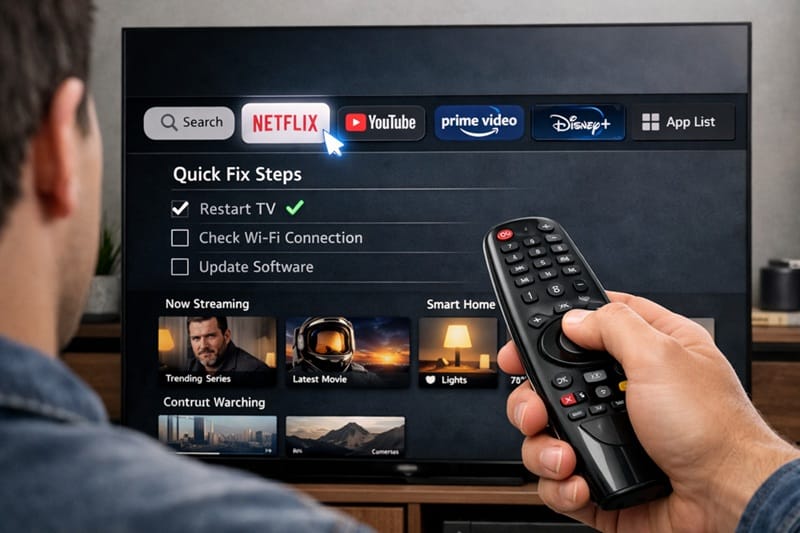
- Confirm the scope. Try two or three different apps. One failing points to the app; all of them failing points to the network, storage, or firmware.
- Check the network first. Open a different app on a phone or laptop on the same Wi-Fi. If that also struggles, you’re looking at a network problem, not something wrong with the TV itself.
- Update or reinstall the specific app. From the home screen, select the app, hold the wheel button to enter edit mode, and check for an update before deleting and reinstalling it.
- Clear storage. Go to Settings → Support (or Device Care on newer models) and remove unused apps to free up memory.
- Check for a webOS software update. An outdated platform version is a common, easy-to-miss cause once the app-specific and network checks come back clean.
- Power cycle properly. A full unplug clears more than putting the TV into standby does — leave it unplugged briefly before powering back on.
- Reset only as a last step. A factory reset can clear corrupted settings, but it won’t fix a server outage or weak Wi-Fi — rule those out first.
What This Means for You in Practice
Who Should Try These Fixes First
If you’re already fairly confident this is a network or storage issue and just want the fastest fix, start with the router restart and storage cleanup steps above — those two are the most common fixes for “every app is broken” symptoms, worth trying before anything more involved.
Who Should Skip Straight to Contacting Support
If you’ve already confirmed it’s one specific app, working through the network and firmware steps above won’t help — go straight to updating or reinstalling that app, and if the problem persists after that, it’s worth contacting the app provider rather than LG.
If none of these fixes stick and the set is consistently behind on updates, that’s sometimes a sign it’s simply reached the end of active software support rather than something being broken outright. Our LG OLED roundup is a reasonable next stop if you’re weighing whether to troubleshoot further or start looking at what replaces it.
FAQs: LG TV Apps Won’t Open
Why do LG TV apps stop opening in the first place?
It’s usually one of four things: an outdated or corrupted individual app, an unstable network connection, low internal storage, or an outdated webOS version. According to RTINGS’ overview of webOS, app responsiveness varies meaningfully by platform generation, which is part of why the same symptom can have different root causes on different TVs.
Does a factory reset fix apps that won’t open?
Sometimes, but it’s not the first thing to try. A factory reset clears corrupted local settings, but it won’t fix a server-side outage, a weak Wi-Fi signal, or an app that hasn’t been updated — all more common causes than a full reset actually being necessary.
Why does only one app crash while the rest work fine?
That pattern is a signal pointing at the app itself rather than the TV — either it’s running an outdated version or the local install has become corrupted. Updating or reinstalling that specific app resolves this in most cases.
Is it worth replacing an older LG TV if apps keep failing?
Not usually on app problems alone — most causes are fixable with the steps above. It becomes a more reasonable question if the TV has also stopped receiving webOS updates entirely, since that limits how long apps will keep working correctly. Our LG OLED buying guide is a useful next step if you’re at that point.
Why does this keep happening even after I update an app?
Because the update and the fix aren’t solving the same problem. An app update changes what the app expects from the TV; it doesn’t change what your TV’s webOS version can actually deliver. If the two drift far enough apart, updating the app again won’t help — the launch delay or crash is coming from the platform side, not the app itself, which is why checking for a webOS update belongs in the troubleshooting order above rather than being treated as optional.

iYaiii
Editor, GearPulse360
iYaiii is the editor and founder of GearPulse360, specializing in TV reviews and consumer electronics. He researches every recommendation before publishing.
✅ Based on spec analysis and LG’s official and RTINGS data — last verified July 2026