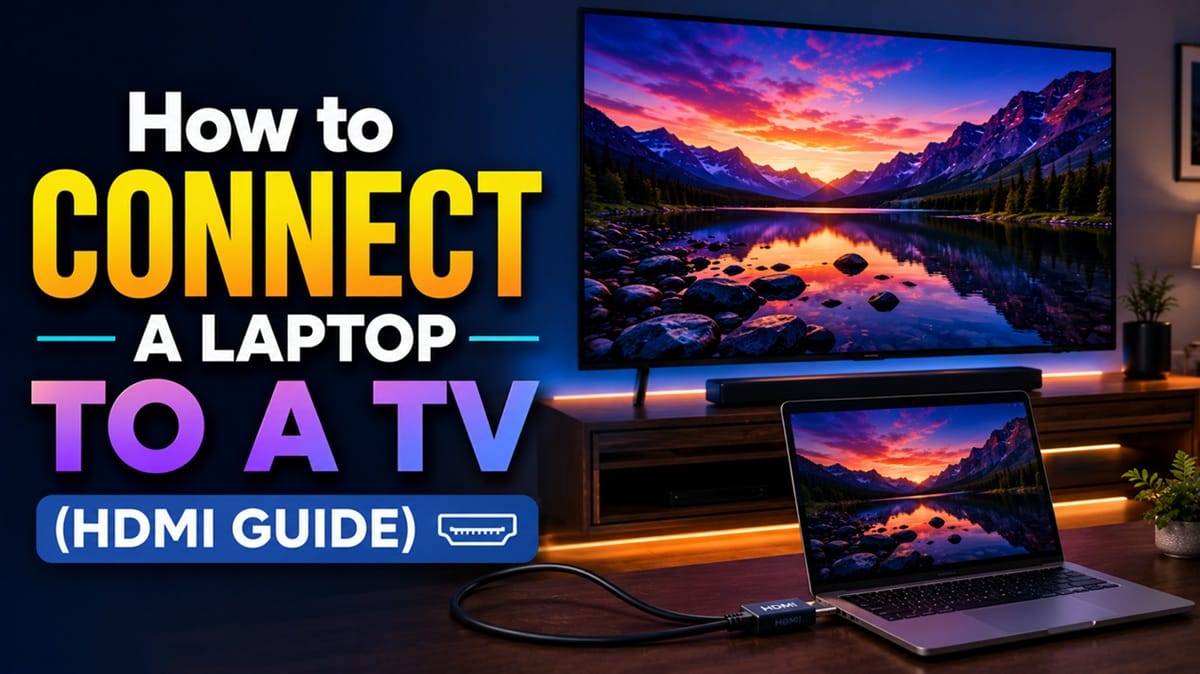
How to Connect a Laptop to a TV: A Step-by-Step HDMI Guide
Last updated: August 2026
🕒 7 min read
Disclosure: GearPulse360 is a participant in the Amazon Associates Program. Some pages on this site contain affiliate links, and we may earn a commission from qualifying purchases at no extra cost to you.
You’ve got a movie queued up, the HDMI cable is plugged into both ends, and the TV is just… black. Not an error message, not a loading spinner — nothing. The laptop’s own screen still works fine, which is what makes this particular kind of stuck so frustrating: both devices are clearly powered on, and yet they’re not talking to each other.
This happens to almost everyone the first time they try to connect a laptop to a TV, and it’s rarely a hardware fault. Based on LG’s and Samsung’s own support documentation, the two most common causes are the TV sitting on the wrong input and the laptop’s display mode set to “PC screen only” instead of extending or duplicating to the second screen — and both take under a minute to fix once you know where to look.
Three things trip people up on the wired route, and in order: picking the right cable for the port you actually have, getting the TV onto the matching HDMI input, and flipping the laptop’s display mode from “PC screen only” to Duplicate or Extend. Wireless mirroring uses a different set of steps entirely — AirPlay, Android casting, and the rest are covered in our guide on how to connect your phone to a TV, since those routes work the same way from a laptop as they do from a phone.
Table of Contents
The Short Answer: How to Connect a Laptop to a TV
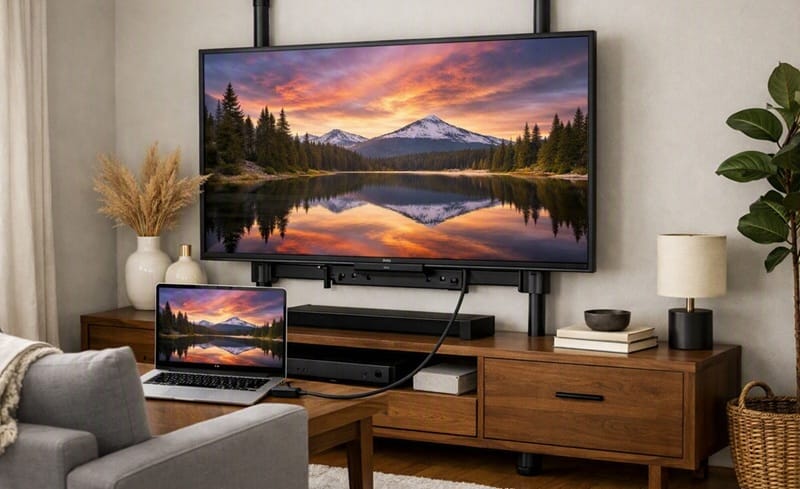
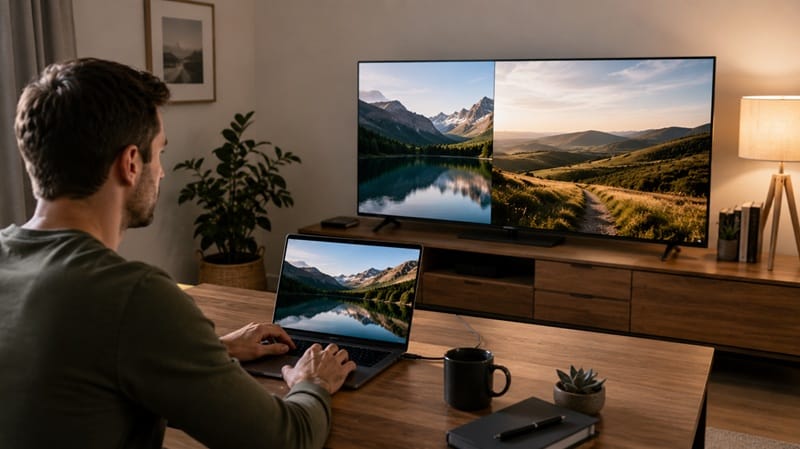
Plug an HDMI cable into your laptop’s HDMI-out port and the TV’s HDMI-in port, then switch the TV to that HDMI input using its remote. On the laptop, press Windows key + P (or the Fn + display-toggle key) to choose Duplicate or Extend — that’s the step most people miss, and it’s the reason the screen stays black even with a fully working cable.
Connecting the Cable and Picking the Right Input
What you actually need
A standard HDMI cable handles both video and audio in a single connection, so no separate audio cable is required in most cases. If your laptop only has USB-C or a smaller Mini/Micro-HDMI port, you’ll need an adapter or a USB-C-to-HDMI cable rather than a standard full-size HDMI cable — check your laptop’s port shape before buying one, since USB-C ports that don’t support video output (some charging-only ports) won’t work for this even with the right cable.
According to LG’s official support documentation on connecting a laptop to a TV, the process is: plug in the HDMI cable, press the Windows key + P (or Fn + F7) to pick a display mode, then check the taskbar speaker icon if sound doesn’t follow — the same basic sequence across most TV brands.
Finding the right input on the TV
TVs number their HDMI ports (HDMI 1, HDMI 2, and so on), and the remote’s Source or Input button cycles through them. If nothing appears after switching inputs, try the next HDMI number — it’s easy to plug into port 2 while the remote is still set to port 1, and that alone accounts for a lot of “my HDMI isn’t working” confusion.
Fixing the Display Mode So the TV Actually Shows Something
On Windows
Press the Windows key and P at the same time to open the Project panel, then choose Duplicate to mirror the same image on both screens, or Extend to use the TV as additional desktop space. Samsung’s own support guidance for connecting a laptop to a TV confirms that a laptop defaults to mirroring the same image on both displays once this step is completed correctly — if the TV still shows nothing after that, the graphics driver is the next thing worth checking, since an outdated driver can prevent the second display from being detected at all.
On Mac
Open System Settings, go to Displays, and the TV should appear as an available display once it’s selected as the active HDMI input — from there you can choose to mirror or extend the desktop the same way Windows does.
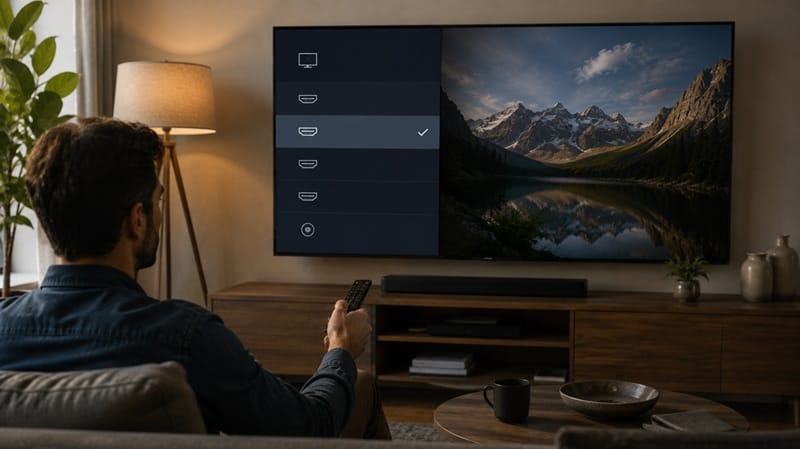
If the input-switching and display-mode steps above made you realize your current TV’s remote or menu system is more of a hassle than it should be, our best OLED TVs of 2026 roundup highlights which of this year’s picks make input switching and PC-mode detection noticeably smoother, alongside picture quality and gaming performance.
What to Do When You Get Picture but No Sound
A single HDMI cable is supposed to carry both video and audio, so silent video usually means Windows or macOS is still routing sound to the laptop’s own speakers instead of the TV. On Windows, click the speaker icon in the taskbar and select the TV as the playback device.
If you’re using an adapter — especially a DVI-to-HDMI or a passive USB-C adapter — audio may not pass through at all, in which case a separate 3.5mm audio cable running from the laptop to the TV (or to a soundbar) is the workaround, not a sign anything is broken. If a paired Bluetooth speaker is already part of your setup, our guide on how to connect a Bluetooth speaker to a TV covers the separate step of getting that speaker to output sound instead of the TV’s own speakers.
What This Means for You in Practice
Buy This If
A wired HDMI connection makes sense if you want a stable, lag-free link for watching movies, giving a presentation, or gaming from a laptop on the big screen — it doesn’t depend on Wi-Fi strength or a matching casting protocol the way wireless mirroring does. It’s also the more practical starting point if your TV isn’t fully set up yet: connecting a laptop over HDMI doesn’t require the TV to be on your network at all, so it works fine even before you’ve gotten around to our guide on how to connect TV to Wi-Fi.
The same logic applies if the TV itself can’t browse the web at all — does a Vizio TV have an internet browser is a question that comes up often with Vizio’s SmartCast platform, and a wired laptop connection sidesteps that limitation by letting the laptop handle the browsing instead of the TV. If you’re weighing whether your current TV can double as a full-time second monitor rather than an occasional laptop display, that’s a broader question with its own tradeoffs around resolution and eye strain worth researching separately before committing to it as a daily setup.
Skip This If
If you just want to occasionally cast a video or a few photos without running a cable across the room, wireless screen mirroring (covered separately above) is the faster setup, since the same casting options apply to most modern laptops too.
FAQs: Connecting a Laptop to a TV
Why does my laptop not detect my TV when connected to a TV with HDMI?
Almost always it’s the TV sitting on the wrong input rather than a failed connection — cycle through the TV’s HDMI sources with the remote first. If that doesn’t work, according to LG’s own troubleshooting documentation, an outdated or corrupted graphics driver is the next most common cause, since Windows won’t recognize a second display it can’t properly communicate with.
Do I need a special cable to connect a laptop to a TV?
No — a standard HDMI cable works for most modern laptops and TVs, since both video and audio travel over the same cable. The only exception is a laptop with just a USB-C or Mini-HDMI port, which needs a matching adapter or cable rather than a full-size HDMI cable.
Should I use HDMI or wireless casting to connect my laptop to my TV?
For anything where audio and video need to stay perfectly in sync — movies, video calls, gaming — a wired HDMI connection is the safer choice, since it isn’t affected by Wi-Fi congestion the way wireless mirroring can be. For a quick, occasional cast of a browser tab or a few photos, wireless is faster to set up and skips the cable entirely.
Why does the picture show up on my TV but there’s no sound?
This usually means the TV hasn’t been selected as the active audio output device on the laptop, not a hardware problem with the cable itself. Check the speaker icon in the Windows taskbar (or Sound settings on Mac) and manually select the TV — this step doesn’t happen automatically on every laptop.
Can I connect a laptop to a TV that doesn’t have Wi-Fi or smart features?
Yes — a wired HDMI connection doesn’t need the TV to be “smart” or connected to a network at all, since the laptop is doing all the processing and simply sending a video signal over the cable. This makes HDMI the more reliable option for older or non-smart TVs where wireless casting isn’t an option anyway

iYaiii
Editor, GearPulse360
iYaiii is the editor and founder of GearPulse360, specializing in TV reviews and consumer electronics. He researches every recommendation before publishing.
✅ Based on spec analysis and LG’s and Samsung’s official data — last verified August 2026