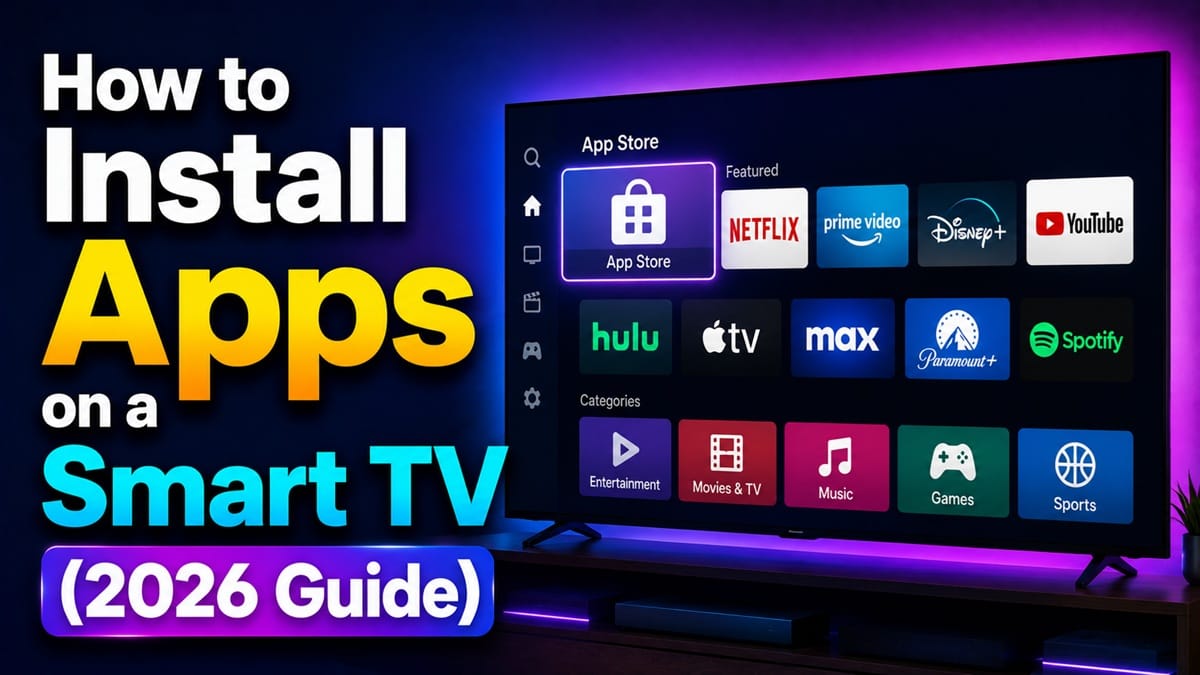
How to Install Apps on a Smart TV, No Matter Which Brand You Own
Last updated: August 2026
🕒 8 min read
Disclosure: GearPulse360 is a participant in the Amazon Associates Program. Some pages on this site contain affiliate links, and we may earn a commission from qualifying purchases at no extra cost to you.
You open the app store on your new smart TV, search for the one app you actually wanted, and either it’s nowhere to be found or you land on a completely different problem: every guide online tells you to “install Google Play,” but there’s no Google Play option anywhere in your TV’s menus. Neither of those is a sign something’s broken.
It’s also not a one-size-fits-all process, which is why so many of those generic guides don’t line up with what’s actually on your screen. We cross-checked the on-screen navigation paths below against Samsung’s and LG’s own official support documentation, since a menu label that’s accurate on one platform can be flat-out wrong on another.
The real issue usually isn’t a broken TV — it’s that “smart TV” isn’t one single platform. Samsung, LG, Google TV or Android TV-based sets, and Roku TV each run their own separate app store with their own rules for what’s available and how you install it.
What follows sorts out each platform’s actual install steps, then flags the handful of cases where an app truly won’t ever show up, no matter which brand you own. If you’re not sure your TV even qualifies as a smart TV in the first place, our guide on what is a smart TV covers what separates a smart TV from a regular one.
Table of Contents
Quick Answer
Open your TV’s app store — Google Play Store on Google TV/Android TV, Smart Hub on Samsung, the LG Content Store on webOS, or the Channel Store on Roku — search for the app, and select Install.
- Best for: Anyone who can’t find a specific app or just set up a new smart TV
- Not ideal for: TVs older than roughly 2019–2020, where hardware limits may block newer app versions
- Key advantage: Same four-step shape on every platform — open the store, search, select, install
- Starting price: Free — installing apps costs nothing; individual streaming services may require their own subscription
The Short Answer
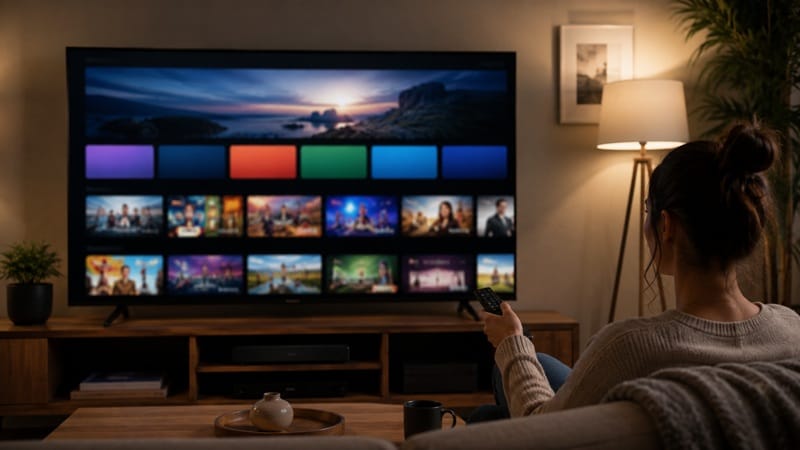
Open your TV’s app store — called Google Play Store on Google TV/Android TV sets, Smart Hub on Samsung, the LG Content Store on webOS, or the Channel Store on Roku — search for the app by name, select it, and choose Install. The button and the menu label change by brand, but the four-step shape (open the store, search, select, install) stays the same everywhere.
Why the Google Play Advice Doesn’t Always Apply
Not every smart TV runs Google’s software
Google Play Store only exists on TVs running Google TV or Android TV as their actual operating system — that includes most current TCL, Hisense, and Sony models, plus standalone Google TV/Chromecast devices. If your TV is one of these, installing apps on a smart TV really does mean opening Google Play, searching, and tapping Install, the same way it works on an Android phone.
Samsung and LG never use Google Play at all
Samsung TVs run Tizen, and LG TVs run webOS — neither operating system has ever supported Google Play Store, in any model year. Samsung routes every install through its own Smart Hub, and LG routes through its own LG Content Store. According to LG’s own support documentation, the Content Store is the only supported way to add apps on a webOS set — there’s no Google Play workaround, official or otherwise.
Installing Apps on Google TV and Android TV Sets
Where to find the app store
From the home screen, look for the Google Play Store icon — usually sitting in the app row or under an “Apps” section. If you don’t see it immediately, the built-in search function (usually a magnifying glass icon) will pull it up directly.
The install steps
Open Google Play Store, select the search icon, and type the app’s name. Choose the correct result — some apps have similarly-named imposters, so check the publisher name before installing. Select Install, wait for the download bar to finish, then either select Open right away or find the new icon back on your home screen.
Installing Apps on Samsung, LG, and Roku TVs
Samsung: Smart Hub
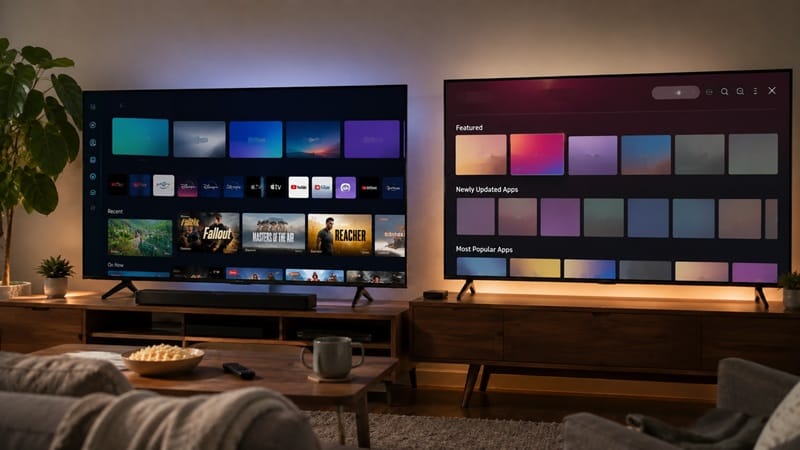
Press Home on the Samsung remote, navigate to Apps, then select the search icon and type the app’s name. Select the app from the results, choose Install on its detail screen, and once the download finishes you’ll get the option to Open it or Add to Home. A Samsung account is required to complete most installs, so it’s worth signing in before you start searching rather than partway through.
LG: Content Store
Press Home to open the webOS launcher bar and select Apps (older webOS versions show this as “LG Content Store” instead). Use the search icon in the upper right, enter the app name, and select Install from the detail screen. Once installed, the app launches straight from the same launcher bar.
Roku TV: Channel Store
Roku still calls apps “channels.” From the home screen, select the Streaming Channels option, search for the app by name, and select Add Channel. If you’re setting up a Roku TV for the first time and your remote isn’t cooperating, our guide on how to connect TV to Wi-Fi covers getting the set online first, since every app store on every platform needs an active connection before it’ll load anything.
App-store speed and how much local storage a TV sets aside for installs are two of the quieter differences between this year’s models — details that don’t show up on a spec sheet the way brightness or refresh rate do. It’s the kind of detail worth checking review by review rather than assuming — our best OLED TVs of 2026 roundup is where we’ve noted it for each of this year’s picks.
Why an App Might Never Show Up, No Matter What You Try
Sometimes the problem isn’t the store, the search term, or the Wi-Fi connection — it’s the TV itself. Older or entry-level smart TVs, especially anything built before roughly 2019–2020, often shipped with a fixed processor and a small amount of storage that newer app versions have simply outgrown. The app store still opens fine; the specific app just no longer appears in search results, because the manufacturer stopped building versions compatible with that hardware.
Region locking is the other common cause. Some apps are only published in certain countries’ app stores, tied to your TV’s registered location or your account’s home region — no install workaround changes that, since it’s a licensing restriction on the publisher’s side, not a technical one on yours.
What This Means for You in Practice
When the Steps Above Are All You Need
If your smart TV is from the last few years and simply isn’t showing an app you expected, working through the right platform’s steps above almost always resolves it — the fix is usually picking the correct store, not troubleshooting a fault. Anyone comparing TVs specifically for app support and streaming performance before buying can find that broken out platform by platform in our best OLED TVs for streaming guide, alongside HDR and sound performance for each pick.
When You’re Dealing With a Hardware Limit Instead
If an app never appears no matter which platform-specific steps you follow, and your TV is several years old, that’s usually a hardware ceiling rather than something an install trick can fix. In that situation, a separate streaming device plugged into an HDMI port sidesteps the limitation entirely, since the device — not the TV — handles running the app.
FAQs: How to Install Apps on a Smart TV
Why can’t I find Google Play Store on my smart TV?
Google Play Store only exists on TVs running Google TV or Android TV as their operating system. If your TV is a Samsung (Tizen) or LG (webOS) model, Google Play was never available on it — you’ll need to use Smart Hub or the LG Content Store instead, both of which carry most of the same major streaming apps. Samsung’s own support page confirms Smart Hub is the only supported app source on its Smart TVs.
Do I need to sign in to an account before I can install apps?
Yes, on most platforms. Samsung requires a Samsung account, Google TV/Android TV requires a Google account, and LG’s Content Store requires an LG account for certain apps, though some free apps install without one. Setting this up before you start searching for apps saves a step later.
Can I install apps on a smart TV that isn’t connected to Wi-Fi?
No — every app store on every smart TV platform needs an active internet connection to browse, search, and download, since the apps themselves are pulled from the manufacturer’s servers rather than stored locally ahead of time.
Is it safe to sideload apps that aren’t in the official store?
It carries more risk than a standard store install, since sideloaded apps skip the manufacturer’s review process entirely. Some platforms (mainly Android TV, through developer settings) technically support it, but Samsung and LG don’t offer an official sideloading path at all, which is itself a signal that the manufacturers don’t consider it a supported use case.
What if my TV brand isn’t one of the ones covered here?
Check which platform your TV actually runs rather than the brand name alone — TCL and Hisense sets, for example, ship with either Google TV, Roku OS, or their own proprietary systems depending on the model, so the same TV brand can need completely different install steps year to year.

iYaiii
Editor, GearPulse360
iYaiii is the editor and founder of GearPulse360, specializing in TV reviews and consumer electronics. He researches every recommendation before publishing.
✅ Based on Samsung and LG official support documentation — last verified August 2026