OLED Pixel Refresh Explained: What It Does and When to Run It
Last updated: July 2026 | 🕒 7 min read
Disclosure: As an Amazon Associate I earn from qualifying purchases. This article contains affiliate links — we may earn a small commission if you buy through them, at no extra cost to you.
A notification pops up on your OLED — “Pixel Cleaning will start” or “Panel Refresh recommended” — and you’re not sure whether to let it run, cancel it, or worry about what it means for your screen.
Most owners land here after seeing that message, or after reading that LG treats the feature as routine background maintenance while Sony explicitly warns against running its version too often. That contradiction is confusing, and it’s the main reason this topic keeps coming up.
This guide breaks down OLED pixel refresh in plain terms: what the feature does at a technical level, how LG, Sony, and Samsung each implement it, and when it makes sense to trigger it yourself instead of leaving it automatic. If you haven’t already, it’s worth reading how to prevent OLED burn-in first, since pixel refresh is one piece of that larger picture, not a standalone fix.
Table of Contents
The Short Answer: What OLED Pixel Refresh Does
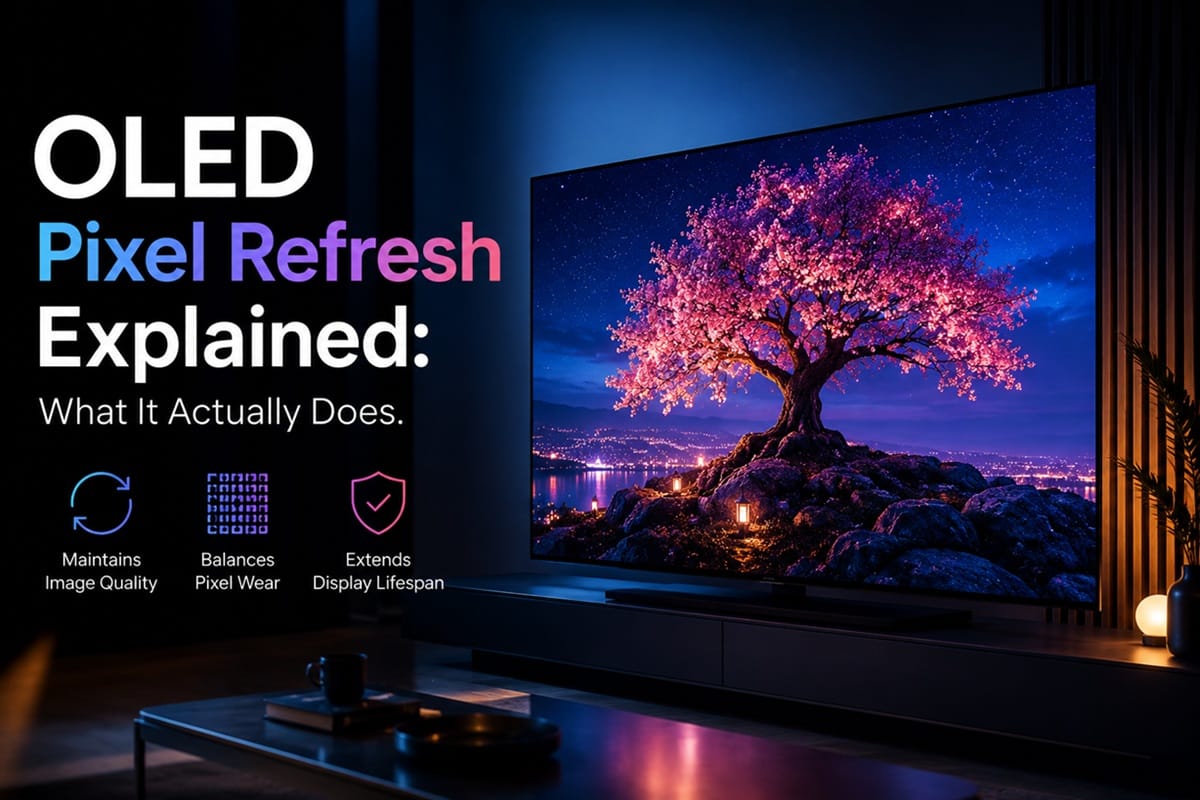
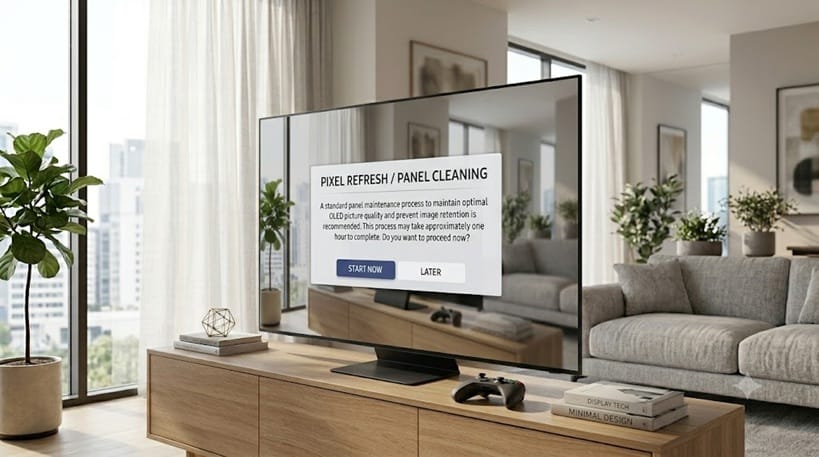
OLED pixel refresh is a built-in maintenance cycle that measures how unevenly individual pixels have aged and adjusts their drive voltage to even things back out. It corrects early-stage image retention and uniformity drift — it does not repair pixels that have already degraded permanently.
How OLED Pixel Refresh Actually Works
The Compensation Cycle Behind the Menu Option
Every OLED pixel is its own tiny light source, and pixels that display bright, static content more often age slightly faster than their neighbors. Left unchecked, that uneven wear is what eventually shows up as a ghosted logo or a faint scoreboard shadow.
The compensation cycle runs a diagnostic pass across the panel, compares each pixel’s output to its expected brightness, and nudges the voltage on the ones falling behind. According to LG’s own support documentation, this is what its Pixel Cleaning (formerly Pixel Refresher) menu option triggers, and the TV also runs a shorter version of this cycle automatically after normal use.
LG Pixel Cleaning vs Sony Panel Refresh vs Samsung’s Version
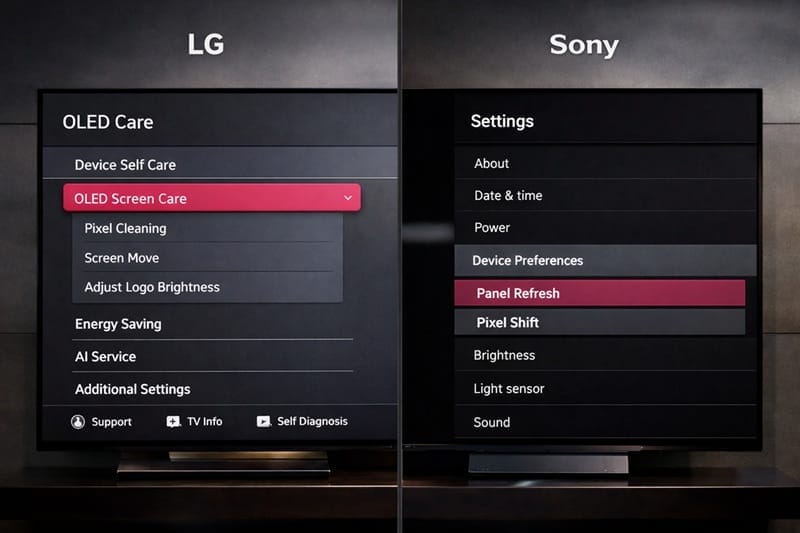
The confusion mostly comes down to naming and default behavior, not a fundamentally different technology. LG calls its feature Pixel Cleaning on current webOS sets and runs it automatically each time the TV is powered off with the remote, based on accumulated usage hours.
Sony’s equivalent is Panel Refresh, and its official help guide describes it as running automatically in standby, with manual runs reserved for noticeable image retention. Samsung’s OLED lineup uses a similar background compensation process under its own panel-care menu naming, though it’s less publicly documented than LG’s or Sony’s.
Pixel Refresh vs Pixel Shift: Two Different Tools
It’s easy to mix these up, but pixel refresh and pixel shift solve different problems. Pixel shift subtly nudges the entire image by a pixel or two at set intervals while you watch, so no single pixel spends hours rendering identical content.
Pixel refresh works on a powered-down panel, correcting wear that’s already accumulated rather than preventing it in real time. Most current OLED TVs run both features together, and turning pixel shift off to somehow “save” pixel refresh for later isn’t a trade worth making.
Automatic vs Manual: When You Should Run Pixel Refresh Yourself
Why the Automatic Cycle Usually Has You Covered
For most viewing habits, the background cycle is doing its job without you noticing. It’s designed to catch the kind of temporary unevenness that builds up from normal mixed content — streaming, gaming, the occasional sports broadcast — long before it becomes visible.
This is also worth separating from a related but different issue: screen retention vs burn-in are often confused, and pixel refresh only addresses the temporary, correctable side of that equation.
When Running It Manually Actually Makes Sense
Manual pixel refresh is worth triggering if you’ve spotted a faint, persistent shadow after switching to different content — a channel logo, a paused menu, or a game HUD that lingered too long. Based on manufacturer specifications, this is precisely the scenario the manual option exists for.
A simple way to check before running it: switch to a plain gray or white screen and look for faint shapes that don’t match anything currently displayed. If nothing shows up, the automatic cycle is likely already keeping pace, and a manual run isn’t necessary yet.
What it isn’t meant for is casual, frequent use. Sony’s guidance discourages running Panel Refresh unnecessarily often, reserving manual runs for cases with noticeable retention, since the process itself places some load on the panel. If you’re weighing panel care against your next set entirely, our best OLED TVs in 2026 roundup covers current models with the strongest built-in burn-in mitigation.
What OLED Pixel Refresh Can’t Fix
This is where the biggest misconception sits. Pixel refresh corrects differential wear and temporary retention — it cannot reverse organic material that has already degraded to the point of permanent burn-in. Once a shadow survives a full cleaning cycle and persists across different content for days, that’s a sign of true burn-in rather than something the compensation process will resolve.
Why It’s Not a Repair Tool for Existing Burn-In
Based on independent testing data, OLED panels from the last few generations have become considerably more resistant to reaching that point under normal viewing, but the pixel refresh feature was never designed to be a repair tool for panels that are already there.
Running It Repeatedly Doesn’t Help
Running the cycle two or three times in a row won’t accomplish more than running it once, since it isn’t built to strip away wear that’s already permanent — patience with the automatic cycle matters more than repetition of the manual one.
What This Means for You in Practice
Who Should Pay Attention to This
Owners who run static content for long stretches — news channels with tickers, a fixed game HUD, or a desktop taskbar on a monitor-duty OLED — get the most practical value from understanding manual pixel refresh. If burn-in risk is a factor in whether OLED makes sense for your setup at all, is OLED worth it in 2026 covers that decision in more depth.
Who Doesn’t Need to Worry About This
If your viewing is mostly varied streaming, movies, and normal gaming rotation, the automatic cycle is quietly handling maintenance in the background. There’s no benefit to manually triggering pixel refresh on a schedule just because the option exists.
FAQs: OLED Pixel Refresh Explained
What does OLED pixel refresh actually do?
It runs a compensation cycle that measures uneven pixel aging and adjusts voltage to restore uniform brightness across the panel. According to RTINGS’ long-term OLED testing, this kind of cycle is a normal part of how modern OLED panels manage wear over time.
Is it safe to run pixel refresh manually?
Yes, in moderation. Manufacturer guidance treats occasional manual runs as safe when triggered by visible retention, but repeated unnecessary runs aren’t recommended since the process itself uses panel time.
How often does pixel refresh run automatically?
It varies by brand and model generation. LG’s automatic cycle runs based on accumulated usage hours each time the TV is powered off with the remote, while Sony’s runs during standby periods rather than on every power-off.
Where do I find the pixel refresh setting on my TV?
Menu paths differ by brand and software version, so the exact steps aren’t the same across every model. Our how to calibrate your OLED TV guide walks through the broader picture-settings menu where these panel-care options typically live.
Does pixel refresh fix burn-in?
It fixes temporary image retention, not permanent burn-in. If a shadow persists after a full cleaning cycle and shows up across unrelated content, that points to actual burn-in rather than something pixel refresh is built to reverse.
How long does a pixel refresh cycle take?
Per manufacturer documentation, most manual cycles run for roughly an hour, though exact timing depends on panel size and generation. Automatic background cycles are typically shorter since they run more often and address smaller amounts of accumulated wear.

iYaiii
Editor, GearPulse360
iYaiii is the editor and founder of GearPulse360, specializing in TV reviews and consumer electronics. He researches every recommendation before publishing.
✅ Based on spec analysis and LG’s and Sony’s official data plus RTINGS — last verified July 2026