Why Is My OLED TV Too Dark? Causes and Fixes Explained
Last updated: June 2026 / 🕒 8 min read
Disclosure: As an Amazon Associate I earn from qualifying purchases. This article contains affiliate links — we may earn a small commission if you buy through them, at no extra cost to you.
You just unboxed a new OLED, or you’ve had one for a year, and the picture suddenly looks dimmer than you remember. Before you assume something’s wrong with the panel, the cause is almost always one of a handful of settings working exactly as designed — just not the way you want them to.
Based on editorial research into how LG, Samsung, and Sony configure their picture modes out of the box, the single most common culprit is an energy-saving or eco picture mode quietly capping brightness behind the scenes. A close second is a viewer mistaking normal OLED dimming behavior for a fault.
This guide walks through the real causes in order of likelihood, how to check each one on your TV, and when dimness actually points to something worth investigating further. If you’ve already ruled out a setting and you’re wondering whether what you’re seeing is just how OLED panels behave during bright scenes, our explanation of why OLED TVs dim automatically (ABL) covers that specific behavior in more depth.
Table of Contents
The Short Answer: Why Your OLED TV Looks Too Dark
Most of the time, an OLED TV that looks too dark is set to an energy-saving picture mode, has its OLED Light or Backlight value set too low for the room, or is correctly dimming bright highlights through a built-in protection feature called ABL — not a hardware problem. Checking picture mode and brightness settings resolves the issue in the vast majority of cases.
Picture Mode Is the First Place to Look
Eco and Energy Saving Modes Cap Brightness on Purpose
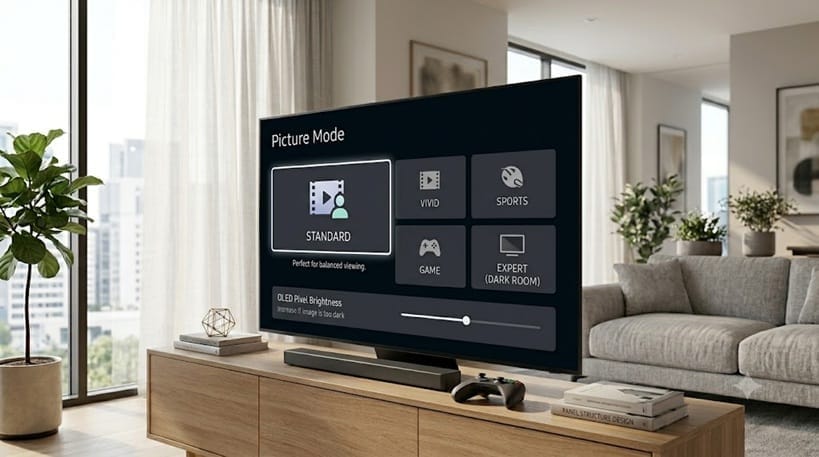
Almost every OLED ships with an energy-saving or “eco” picture mode active by default, and it’s designed to lower light output to reduce power draw. It’s a genuinely useful feature for casual viewing, but it can make an OLED TV too dark for a brightly lit living room or for HDR content that needs more headroom to look right.
Switching to a mode like Standard, Vivid, or Filmmaker Mode (for accurate, non-eco viewing) usually restores the brightness most people expect — though on LG sets, it’s worth knowing that Filmmaker Mode is calibrated to look dimmer than Standard on purpose, so don’t mistake that for the eco mode still being active. Picture mode settings can also reset per input, so a mode you fixed on the streaming app input might still be capped on the cable box input.
Check the OLED Light or Backlight Value Directly
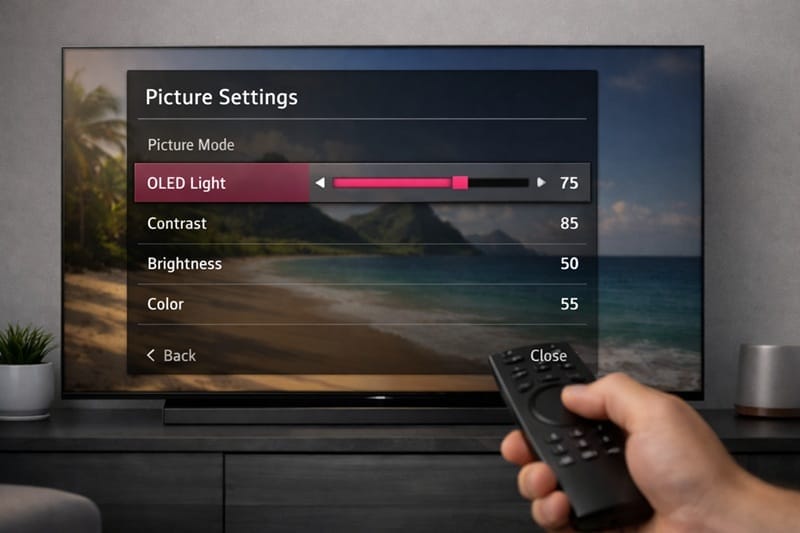
Separate from picture mode, most OLEDs have a dedicated brightness control — usually labeled OLED Light on LG sets, Brightness on Samsung, or Picture Brightness on Sony. This value is often left low from the factory or from a previous owner’s calibration. Raising it doesn’t affect color accuracy the way contrast or sharpness sliders can, so it’s a safe first adjustment to make. LG’s own picture quality and optimization support guide walks through this exact menu path for owners who want the official steps.
Why It Matters More in 2026: HDR Content and Room Lighting
HDR Mastering Doesn’t Always Match Your Room
HDR content is mastered for a specific brightness range, and not every streaming title is mastered consistently. A film graded for a dark theater can look dimmer on a TV than SDR content from the same service, even though nothing is wrong with the display. This is a mastering and tone-mapping issue, not a defect, and it varies title to title rather than being something a single setting fixes permanently.
If you’re also noticing the picture get dimmer specifically during full-screen bright scenes — a snowy landscape, a white loading screen — rather than across the board, that’s a different and very normal OLED behavior worth understanding on its own.
Room Lighting Changes What “Too Dark” Means
OLED panels produce deep, true blacks, which makes them look comparatively dim in a sunlit room next to a high-nit LED TV, even when both are calibrated correctly. If you primarily watch during the day in a bright room, the panel itself may not be the best match for that environment regardless of settings — that’s a TV-fit question rather than a settings question, and it’s worth knowing the difference before you spend more time chasing a fix.
Once you’ve worked through picture mode and brightness settings, it’s also worth comparing how different OLED panels handle bright-room viewing in general — our best OLED TVs of 2026 roundup breaks down which models prioritize peak brightness if you’re shopping with that in mind.
Could It Be Panel Aging Instead of a Setting?
Gradual dimming over several years of heavy use is a separate, less common cause. OLED pixels do lose some luminance over their lifespan, though modern panels are built to slow this considerably compared to early-generation OLED. If brightness has dropped noticeably over months rather than appearing suddenly, it’s worth reading whether OLED burn-in still matters in 2026 before assuming the worst. Our full breakdown of how long OLED TVs last covers what normal panel aging actually looks like, so you can rule it in or out with more confidence than guessing.
For most owners, though, a sudden “this looks too dark” moment is a settings issue, not an aging panel — gradual, multi-year dimming is the pattern that points toward the panel itself rather than the menu.
What This Means for You in Practice
Check These Settings First
Start with picture mode, then OLED Light or Backlight, then confirm you’re not in a power-saving mode tied to ambient light sensors. These three settings resolve the large majority of “too dark” complaints without needing to touch advanced calibration menus.
When Dimness Isn’t a Settings Problem
If you’ve checked every setting and the TV still feels underpowered specifically in a bright, sunlit living room, that’s more likely a room-and-panel mismatch than something to keep troubleshooting. In that case, our best OLED TVs for dark rooms guide explains which environments OLED genuinely suits best, and where a brighter-output panel might serve you better.
FAQs: OLED TV Too Dark
Why is my OLED TV too dark even at maximum settings?
If the picture stays dim at maximum OLED Light or Backlight, confirm you’re not in an eco or power-saving mode that overrides manual settings. According to RTINGS’ calibration settings for the LG C5 OLED, picture mode and energy-saving toggles can cap brightness independently of the slider value itself.
Does turning off power saving mode fix a dark OLED picture?
In most cases, yes — power saving and energy-saving modes are a leading cause of OLED TVs looking dimmer than expected, and disabling them typically restores normal brightness immediately.
Is it normal for an OLED TV to dim during bright scenes?
Yes. This is a built-in protection behavior, not a malfunction, and it’s worth understanding separately from a general “too dark” picture mode issue if it’s specifically tied to large bright areas of the screen.
Should I buy a brighter TV instead of troubleshooting settings?
Only if you’ve already ruled out picture mode and brightness settings and your room is consistently bright during viewing hours — at that point, panel-and-room fit matters more than further adjustment.

iYaiii
Editor, GearPulse360
iYaiii is the editor and founder of GearPulse360, specializing in TV reviews and consumer electronics. He researches every recommendation before publishing.
✅ Based on spec analysis and LG’s official data plus RTINGS — last verified June 2026