Hisense TV Washed Out Dolby Vision: Why It Happens and How to Fix It
Last updated: July 2026
🕒 7 min read
Disclosure: GearPulse360 participates in the Amazon Associates Program. This particular article contains no affiliate links; other content on our site may.
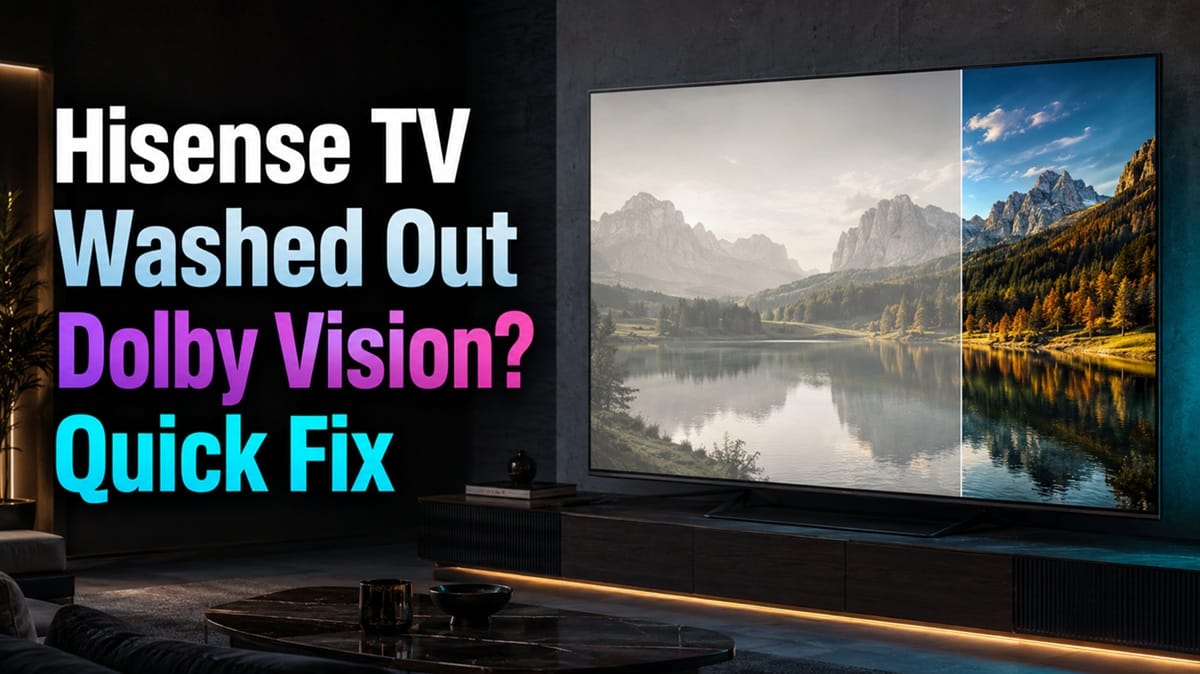
You fire up a Dolby Vision title on your Hisense TV expecting the vivid, punchy HDR look you’ve seen in trailers, but instead the picture looks flatter than the SDR version you watched an hour earlier — colors feel muted, and bright highlights don’t pop the way Dolby Vision is supposed to deliver.
That’s the classic Hisense TV washed out Dolby Vision symptom, and in almost every case it traces back to a setting, not a broken panel. Based on editorial research cross-referencing RTINGS’ lab-tested Hisense U7SG results with Hisense’s own picture-mode behavior, the flat look comes down to Dynamic Tone Mapping or the picture mode fighting the format’s own metadata.
The sections below walk through the RTINGS test data behind that gap and the specific settings worth checking before you assume something’s wrong. (If you’re dealing with a different kind of odd behavior on the same TV — like why a Hisense TV keeps freezing and restarting — that’s a separate, unrelated issue.)
It’s also a different symptom from Hisense mini LED blooming, the soft halo around bright highlights that comes from local-dimming zones rather than Dolby Vision’s tone-mapping curve. Overshoot and blooming can both show up on the same TV, but they trace back to separate parts of the picture pipeline.
Table of Contents
The Short Answer: Why Your Hisense TV Looks Washed Out in Dolby Vision
In most cases, a flat or washed-out Dolby Vision picture on a Hisense TV comes down to Dynamic Tone Mapping and picture mode interacting with the source’s own metadata — not a hardware fault. The fix is almost always in the picture settings menu, not a return or exchange.
What’s Actually Causing the Flat Picture
Dynamic Tone Mapping vs. the Picture Mode You’re In
Dolby Vision works by embedding dynamic metadata into the source file. According to Dolby’s own technology overview, this lets a Dolby Vision-enabled display continuously optimize image quality based on the specific device, service, and content, rather than applying one fixed tone-mapping curve to an entire file.
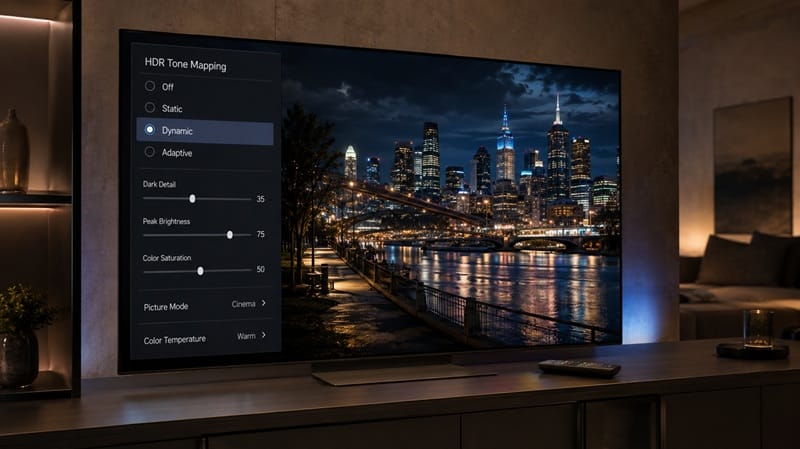
On the Hisense U7SG, RTINGS tested this directly: with the TV set to Filmmaker Mode, Dynamic Tone Mapping is disabled entirely, and switching it on — in either the “Brightness Preferred” or “Details Preferred” profile — measurably changes how bright certain scenes look, without changing the TV’s actual peak brightness output. If your set is sitting in a picture mode that disables DTM, or DTM is set to the profile that doesn’t suit the content you’re watching, that mismatch can read as a flatter, less punchy image even though nothing on the panel is malfunctioning.
Out-of-Box Color Temperature
A second factor compounds the washed-out feeling in Dolby Vision specifically: out-of-box color accuracy. RTINGS’ testing found the Hisense U7SG’s factory HDR color accuracy is only mediocre before calibration, with a color temperature that runs noticeably cold — producing a blue tint that mutes how warm and saturated Dolby Vision’s HDR highlights look.
The same testing found the panel’s HDR color volume itself is excellent, with no noticeable washout in bright scenes, and that HDR accuracy becomes excellent after a full calibration. The factory-default white balance, not the panel, is what’s producing the muted look.
Where the Brightness Ceiling Comes Into Play
Peak Brightness Cutoff in Very Bright Scenes
The U7SG also hits a real, measurable brightness ceiling that plays into this. RTINGS’ PQ EOTF tracking data shows a sharp cutoff at the TV’s peak brightness — content mastered at different peak-nit levels isn’t treated any differently once it exceeds what the panel can physically display. In a very bright Dolby Vision scene, highlight detail above that ceiling compresses instead of resolving separately, which reads as the image going flat even though it’s a brightness limit, not a color or contrast defect. This is a Mini-LED tone-mapping trait, not a Hisense-specific bug, so it’s worth checking picture settings first on any Mini-LED set before assuming a fault.
Local Dimming and Dimming-Zone Count
How noticeable the effect is also ties back to local dimming. RTINGS counted 960 dimming zones on the 65-inch U7SG — enough to keep haloing around bright highlights to a slight glow rather than a hard edge, per their testing. For a closer look at how that zone count plays out across the U7SG’s full test results, our Hisense 65U7SG review covers it in detail.
That same slight glow around bright highlights is expected Mini-LED behavior rather than a symptom of this Dolby Vision issue. If you’ve noticed it and want to know where normal blooming ends and a real problem starts, our Hisense mini LED blooming guide walks through that distinction.
If you’re weighing whether to work through these settings or move on to a different TV entirely, our best 4K TVs of 2026 roundup covers this year’s top picks with strong factory HDR accuracy right out of the box.
Getting the Best Dolby Vision Picture on Your Hisense TV
Settings Worth Checking First
- If Dolby Vision looks flatter than expected, switch out of Filmmaker Mode and test both Dynamic Tone Mapping profiles — “Brightness Preferred” and “Details Preferred” — to see which matches your room and content better.
- Avoid Vivid or Standard-style picture modes for Dolby Vision content; these tend to override the format’s own metadata rather than working with it.
- Check that the color temperature setting isn’t left on a cooler factory default, since that’s the setting most responsible for a blue-tinted, less vivid look in HDR.
When It’s Worth a Basic Calibration
Since RTINGS found HDR accuracy on the U7SG to be excellent after a full calibration, even a basic manual white-balance adjustment in the TV’s expert picture settings can meaningfully change how washed out the image feels — without touching Dynamic Tone Mapping at all.
What This Means for You in Practice
Who Should Pay Attention to This
Owners using Filmmaker Mode or Movie mode who expect Dolby Vision to look richer than what they’re seeing should check DTM first — RTINGS confirmed that mode disables it by default. New owners judging picture quality straight out of the box, before touching any settings, are the other group most likely to run into this.
Who Doesn’t Need to Worry
If you’ve already compared an OLED and a Mini-LED Hisense side by side and the Hisense still looks slightly flatter in HDR highlights even after adjusting these settings, that’s largely inherent to how Mini-LED and OLED handle HDR differently, not something a settings menu alone can fully close.
FAQs: Hisense TV Washed Out Dolby Vision
Why does my Hisense TV look washed out in Dolby Vision but fine in HDR10?
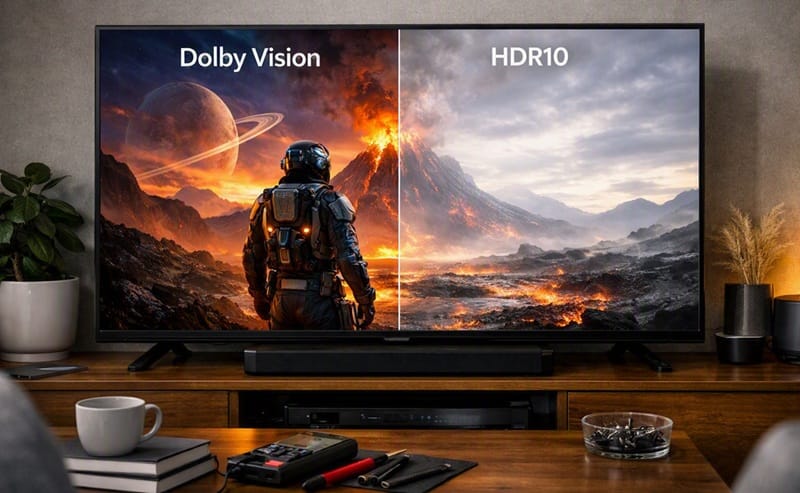
Dolby Vision uses dynamic, scene-by-scene metadata rather than one static profile for the whole file, so Dynamic Tone Mapping settings affect it more visibly than a static HDR10 signal does. RTINGS’ own testing on the Hisense U7SG confirms the TV renders noticeably different brightness levels between its two DTM profiles, even though peak brightness output itself doesn’t change.
Does adjusting Dynamic Tone Mapping actually fix a washed-out Dolby Vision picture?
Usually. RTINGS’ own measurements show switching DTM on changes scene brightness noticeably compared to Filmmaker Mode, where it’s off by default — so if you’re watching in Filmmaker Mode and Dolby Vision looks flat, turning DTM on and testing both the “Brightness Preferred” and “Details Preferred” profiles is the first thing to try. In Game Mode specifically, RTINGS noted the U7SG has no HGiG toggle, but since it isn’t tone mapping around its peak brightness there, this isn’t the source of a washed-out look during gaming.
Should I return a Hisense TV if Dolby Vision looks washed out?
Not right away. Work through the picture mode and Dynamic Tone Mapping settings first — that’s the setting RTINGS’ own testing traced the effect back to. If the picture still looks flat after trying both DTM profiles and a non-Vivid picture mode, that’s the point to document the behavior and reach out to Hisense support rather than assuming a defect.
Is this the same issue as Dolby Vision picture problems on the Hisense U8QG?
Not exactly. What’s described here is the Dynamic Tone Mapping and color-temperature behavior RTINGS measured on the U7SG specifically. We’re covering the U8QG’s Dolby Vision picture behavior in a separate, more detailed piece, since its higher peak brightness introduces its own trade-offs.
Does the Hisense U7SG support both Dolby Vision and HDR10+?
Yes. The U7SG supports Dolby Vision, HDR10+, HDR10, and HLG, so you don’t need to worry about format compatibility with either major dynamic-metadata standard — the picture differences discussed above come down to settings, not missing format support.

iYaiii
Editor, GearPulse360
iYaiii is the editor and founder of GearPulse360, specializing in TV reviews and consumer electronics. He researches every recommendation before publishing.
✅ Based on spec analysis and RTINGS data — last verified July 2026