How to Connect a Bluetooth Speaker to TV: A Step-by-Step Guide for Any Brand
Last updated: August 2026
🕒 7 min read
Disclosure: GearPulse360 is a participant in the Amazon Associates Program. Some pages on this site contain affiliate links, and we may earn a commission from qualifying purchases at no extra cost to you.
You pair your Bluetooth speaker to the TV, the connection succeeds, a little confirmation tone plays — and then the sound keeps coming out of the TV’s own speakers anyway. Nothing looks broken. The speaker just isn’t doing anything.
That mismatch is more common than it sounds, because knowing how to connect a Bluetooth speaker to a TV isn’t quite the same as knowing how to pair one to a phone. Every major TV brand buries the option in a slightly different settings menu, and most TVs only let one Bluetooth audio device play sound at a time — so if a phone or a soundbar was paired earlier, the speaker can sit in the device list looking “connected” without ever actually taking over as the output.
This guide walks through the brand-specific menu paths for Samsung, LG, Sony, TCL, and Hisense TVs, what to do when a paired speaker won’t carry the sound, and how this wireless route compares to a wired path like what ARC and eARC actually do. If you’re setting up a brand-new TV, it’s worth getting it online first — our guide on how to connect TV to Wi-Fi covers that quick step, then the Bluetooth pairing details below pick up from there.
Table of Contents
The Short Answer: How to Connect a Bluetooth Speaker to a TV
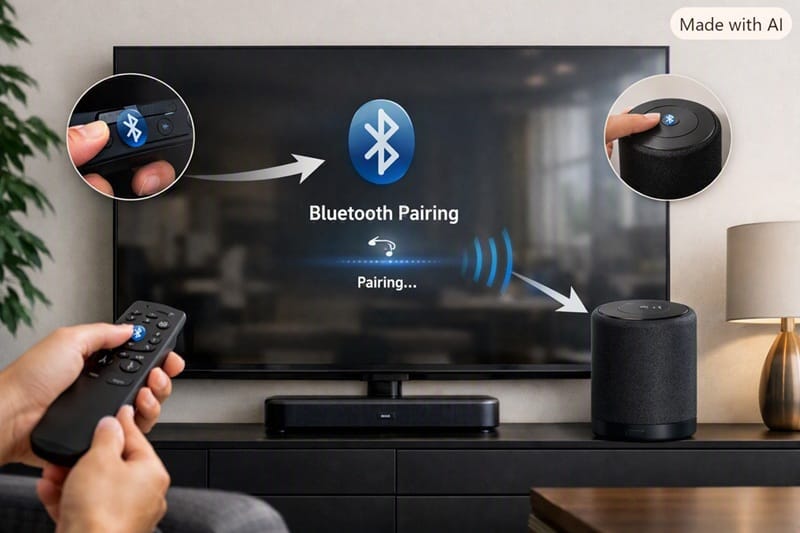
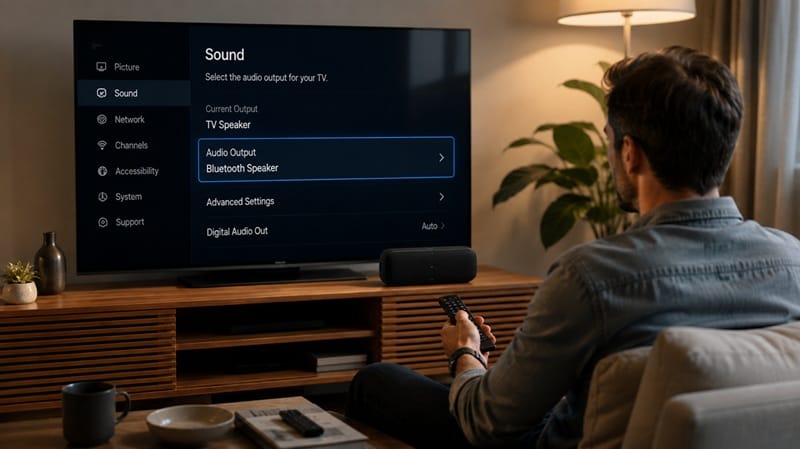
Turn on the speaker’s pairing mode, open the TV’s sound settings, and select the speaker from the Bluetooth device list. On most current TVs, the path is Settings > Sound > Sound Output > Bluetooth Speaker List. The sections below cover the exact menu wording by brand, plus what to check if the speaker pairs but the TV keeps using its own speakers instead.
How Bluetooth Pairing Actually Works on a TV
Menu paths by brand
The mechanics are the same everywhere — put the speaker in pairing mode, then find it from the TV’s side — but the menu wording shifts by manufacturer:
- Samsung: Home > Settings > Sound > Sound Output > Bluetooth Speaker List
- LG: Settings > Sound > Sound Out > Bluetooth Devices
- Sony (Google TV): Settings > Watching TV > External inputs > Bluetooth settings, or Quick Settings > Bluetooth
- TCL / Hisense (Google TV or Roku): Settings > Remotes & Accessories > Bluetooth (Google TV models), or the Roku-specific Bluetooth pairing flow on Roku TV sets
Roku TV models are the one real outlier here. Instead of a generic “Bluetooth” menu, pairing is handled through Roku’s own accessory-pairing flow, and it’s built primarily around headphones rather than standalone speakers — the option still works for a Bluetooth speaker, but it’s tucked under a different label than the rest of the sound settings.
Samsung’s own support documentation lays out this exact sequence, including what to do if the Bluetooth Speaker List option doesn’t appear at all — on some older or budget models, Bluetooth audio output isn’t supported and a Bluetooth transmitter accessory is the only workaround.
What “paired” doesn’t guarantee
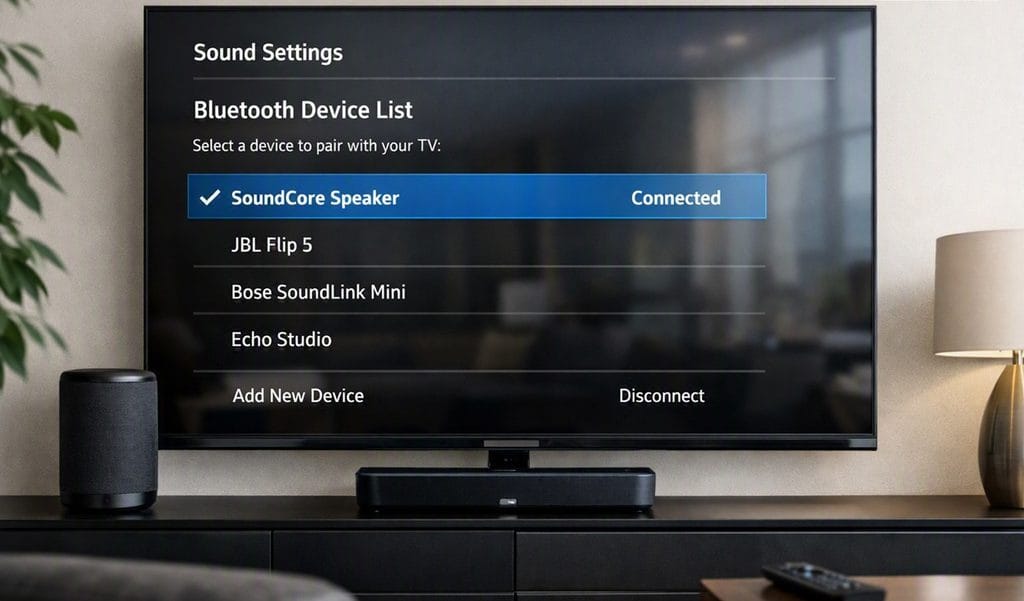
Once the speaker shows up in the list and you select it, the TV should switch its Sound Output setting to Bluetooth automatically. It doesn’t always. If the setting stays on “TV Speaker” or “Optical” after pairing, the TV registered the connection but never flipped the active output — that’s a separate step, and it’s the single most common reason people think pairing “didn’t work” when it actually did.
Why This Trips People Up in 2026
Only one Bluetooth audio device at a time
Most TVs — even 2026 flagship models — only support one active Bluetooth audio output at once. If a soundbar, headphones, or someone else’s speaker got paired earlier, your speaker can join the device list without ever becoming the thing actually playing sound. Disconnecting the older device usually clears this immediately.
This is different from how connecting a second screen or accessory works — our guide on how to connect your phone to a TV covers a similar one-connection-at-a-time limit that trips people up with screen mirroring.
Bluetooth adds a small amount of audio lag
Think of Bluetooth audio a bit like a relay race handoff — every transfer adds a beat, even when each runner is fast. A wired connection sends audio almost instantly; Bluetooth has to encode, transmit, and decode the signal first, which adds a small delay. On most speakers that delay is barely noticeable for movies and TV shows, but it can occasionally show up as dialogue landing a fraction of a second behind the picture.
A handful of 2026 sets sidestep the one-device-at-a-time limit outright by supporting simultaneous Bluetooth and TV-speaker output — our best OLED TVs of 2026 roundup calls out which current picks include that feature, if it’s the kind of thing that would tip a purchase decision.
Troubleshooting: When the Speaker Won’t Pair or Won’t Take Over Audio
Most reported failures come down to one of a small handful of causes, and none of them require a factory reset or a firmware update to fix. Work through these roughly in order before assuming the speaker itself is the problem:
- Speaker doesn’t appear in the list: put the speaker back into pairing mode (it often times out after 1–2 minutes) and re-scan from the TV’s Bluetooth menu.
- Speaker shows as paired but no sound plays: manually change Sound Output to Bluetooth in the TV’s settings — pairing and active output are two separate switches.
- Speaker keeps disconnecting: move it closer to the TV and away from routers or other 2.4GHz devices, which can interfere with the signal.
- Speaker won’t reconnect after being paired once before: forget the device on the TV’s side, power-cycle the speaker, and pair it again from scratch.
What This Means for You in Practice
Who Should Pay Attention to This
If you already own a Bluetooth speaker and just want noticeably better sound than a TV’s built-in speakers without buying dedicated audio gear, this is the simplest upgrade path available. It’s also worth checking before you shop — our best OLED TVs for home theater guide is a better starting point if you’re planning a dedicated sound system rather than a single portable speaker.
Who Doesn’t Need to Worry About This
If you’re already running a soundbar or a full AV receiver setup, adding a Bluetooth speaker on top isn’t necessary — you’d be choosing between two audio sources rather than upgrading anything, and the wired connection will sound better and stay in sync more reliably.
FAQs: How to Connect a Bluetooth Speaker to a TV
Does connecting a Bluetooth speaker to a TV cause audio lag?
Yes, a small amount — Bluetooth has to encode and decode the audio signal, which adds a delay that a wired connection doesn’t have. Independent connectivity testing from RTINGS’ Bluetooth connectivity benchmarks shows this lag varies by speaker and codec, though it’s rarely severe enough to be distracting for casual viewing.
Can I use a Bluetooth speaker and the TV’s built-in speakers at the same time?
On most TVs, no — connecting a Bluetooth speaker switches the Sound Output setting away from the TV’s internal speakers entirely. A small number of newer models offer a dual-audio-output feature, but it’s the exception rather than the norm.
Why does my TV show the speaker as paired but no sound comes out?
Pairing and active audio output are two separate settings. Check the TV’s Sound Output menu and confirm it’s actually set to the Bluetooth speaker, not still set to “TV Speaker” or a wired input.
Is Bluetooth the best way to get better TV sound?
It’s the simplest, not necessarily the best. A wired connection through HDMI ARC or eARC generally sounds better and avoids lip-sync issues altogether — if your speaker or a soundbar you’re considering supports it, that’s usually the stronger long-term option. It’s also worth ruling out a genuine connection fault first; our guide on eARC or CEC connection problems covers what to check if a wired setup won’t sync properly.
Will Bluetooth pairing get easier across TV brands over time?
Possibly, but don’t count on menu paths converging soon — each manufacturer builds its own settings structure around its own smart TV platform, and that’s unlikely to change just because Bluetooth audio support has become standard.

iYaiii
Editor, GearPulse360
iYaiii is the editor and founder of GearPulse360, specializing in TV reviews and consumer electronics. He researches every recommendation before publishing.
✅ Based on spec analysis and Samsung’s, LG’s, and Sony’s official data plus RTINGS — last verified August 2026