Best OLED TV Settings for Movies in 2026: A Brand-by-Brand Guide to Getting the Picture Right
Last updated: June 2026
Disclosure: GearPulse360 is a participant in the Amazon Associates Program. Some pages on this site contain affiliate links, and we may earn a commission from qualifying purchases at no extra cost to you.
Your OLED TV shipped with settings designed for a showroom floor, not your living room. Out of the box, most OLED TVs are set to a Vivid or Standard picture mode — something bright enough to compete with overhead store lighting at noon. The result at home is a picture that looks washed out, over-sharpened, or weirdly artificial, especially on films.
Settings in this guide are cross-referenced against RTINGS calibration data and verified against current firmware — LG webOS 25, Samsung Tizen 2025, and Sony Google TV on the Bravia 8 series.
This guide covers the best OLED TV settings for movies across all three major brands. If you’re still deciding which OLED to buy, see our roundup of the best OLED TVs for movies first — then come back here once it’s on your wall.
Table of Contents
The Short Answer: Where to Start on Any OLED
On any OLED TV — LG, Samsung, or Sony — the fastest route to a better movie picture is this: switch to Filmmaker Mode or Cinema/Movie Mode, turn motion smoothing off, and set sharpness to zero. Those three changes cover the settings that matter most for most rooms. The brand-by-brand sections below fill in the details — the settings that differ between LG’s WOLED and Samsung’s QD-OLED, and the options Sony buries a few menus deep.
| Brand | Best Picture Mode | Motion Setting | Sharpness | Color Temp | Dolby Vision |
|---|---|---|---|---|---|
| LG (webOS 25) | Filmmaker Mode (Cinema if bright room) | TruMotion → Off | 0 | Warm 2 | ✓ Yes |
| Samsung (Tizen 2025) | Movie Mode (Filmmaker for dark room) | Auto Motion Plus → Off | 0 | Warm 2 | ✗ No |
| Sony (Google TV) | Cinema Pro (Cinema Home if bright room) | Motionflow → Off | 0 | Warm | ✓ Yes |
Scroll right on mobile to see all columns. Detailed menu paths for each brand are in the sections below.
Why OLED Settings Differ by Brand and Panel Type
Not all OLED TVs handle light the same way, and that affects which settings actually matter for your specific TV.
WOLED vs. QD-OLED: why the starting point differs
LG and Sony use WOLED panels — a white OLED layer filtered through a color subpixel grid. Samsung uses QD-OLED, which combines a blue OLED emitter with quantum dot color conversion. The practical difference: QD-OLED panels can hit very high peak brightness in small windows, but their Automatic Brightness Limiter (ABL) kicks in more aggressively on larger bright scenes. This means Filmmaker Mode on a Samsung can look slightly underexposed compared to the same mode on an LG, especially during bright daytime scenes. A small brightness adjustment fixes this — covered in the Samsung section below. For a deeper look at how these panel types compare, see our QD-OLED vs WOLED comparison.
Why Filmmaker Mode isn’t always the “best” setting
Filmmaker Mode is the most technically accurate picture preset — it disables post-processing, locks color to D65 white point, and uses a 2.4 gamma curve. That’s ideal in a fully dark room. But if you watch with some ambient light, Cinema or Movie mode gives you a touch more brightness and slightly punchier colors while keeping accuracy at a level most viewers are happy with. Neither is wrong — it comes down to your room.
LG OLED Settings for Movies (webOS 25)
LG’s WOLED panels are among the most accurate out of the box of any OLED TV. A few targeted changes are all you need. These settings apply to the C5, G5, B5, and C6/G6 lineup on webOS 25.
Picture Mode
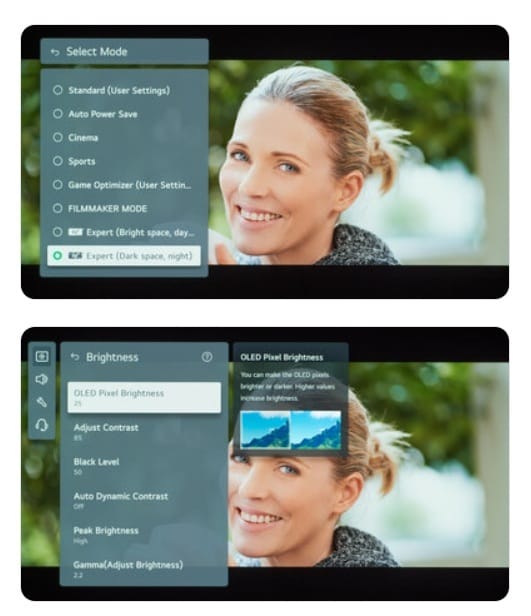
Navigate to Settings → Picture → Picture Mode and select Filmmaker Mode for dark-room viewing, or Cinema if your room has any ambient light. Avoid Cinema Home — it’s brighter, but accuracy drops noticeably. Vivid is for stores, not homes.
LG’s AI Picture Pro adds a layer of automatic processing on top of your chosen mode. If you want full manual control, go to Settings → Picture → Advanced Settings → AI Picture Pro and turn it off. Most viewers won’t notice the difference with it on, but purists should disable it.
OLED Pixel Brightness
Navigate to Settings → Picture → Advanced Settings → Brightness → OLED Pixel Brightness. Set this between 80–100 for most rooms. Contrary to what you may have read online, running this at 100 does not damage the panel — RTINGS’ long-term testing confirms it’s safe. Only drop below 80 if you watch exclusively in a completely blacked-out room and find the picture uncomfortably bright. Leave Peak Brightness set to Auto.
Motion: Turn TruMotion Off
This is the single most important setting for movie watching on any LG TV. Go to Settings → Picture → Advanced Settings → Clarity → TruMotion and set it to Off. TruMotion inserts artificial frames between real ones — the result is the infamous “soap opera effect” that makes films look like they were shot on a video camera. With TruMotion off, motion looks exactly as the director intended. For sports or live TV you can revisit this, but for movies it should always be off.
Sharpness and Color
Set Sharpness to 0. Leave Color at its default (50) and Color Temperature at Warm 2, which targets the D65 color standard used in film mastering. If Warm 2 looks too yellow in your room, Warm 1 is an acceptable compromise — but avoid Medium or Cool, which shift skin tones inaccurately. For a full reference point on LG’s calibrated settings, RTINGS publishes their LG C5 calibration baseline.
For more on LG’s 2026 lineup, see our LG OLED roundup.
Samsung OLED Settings for Movies (QD-OLED, Tizen 2025)
Samsung’s QD-OLED panels deliver the richest color volume of any OLED on the market, but the out-of-box settings lean toward punchiness over accuracy. The settings below apply to the S90F, S90H, S95F, and S95H on Tizen 2025. One important note before you start: Samsung OLED TVs do not support Dolby Vision — they use HDR10+ instead. This is covered below.
Picture Mode
Go to Menu → Picture → Picture Mode and select Movie for most situations, or Filmmaker Mode if you’re in a controlled dark room. Samsung’s Movie mode is well-calibrated and adds a small brightness boost over Filmmaker that works well in rooms with some light. Avoid Dynamic and Standard for film watching — both over-process the image.
Brightness and the QD-OLED ABL adjustment
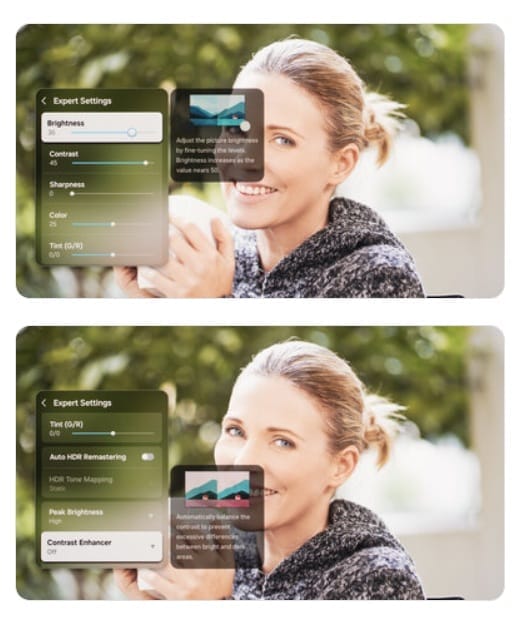
Navigate to Menu → Picture → Expert Settings → Brightness. In Filmmaker Mode specifically, Samsung’s ABL can make large bright scenes look slightly dim compared to an equivalent LG. If you notice this — a daytime sky or bright interior that seems to “crush” — raise Brightness by 2–4 points from its default. This is a QD-OLED panel behavior, not a fault. Local Dimming should be set to Low in Movie mode; it has minimal effect on an OLED panel but can introduce subtle artifacts at higher settings.
Motion: Auto Motion Plus Off
Go to Menu → Picture → Expert Settings → Auto Motion Plus and set it to Off. Same soap opera effect as LG’s TruMotion — always off for film content.
HDR10+ and the Dolby Vision question
Samsung OLED TVs support HDR10+ but not Dolby Vision. For most streaming content this is fine — Netflix, Disney+, and Amazon Prime Video all support HDR10+. If you buy 4K Blu-rays, check whether your discs are mastered in Dolby Vision or HDR10+; some titles are Dolby Vision only, in which case the Samsung TV will fall back to HDR10 (still excellent, just without the dynamic metadata layer). Under Menu → Picture → Expert Settings → HDR+ Mode, set this to Auto. For more on Samsung’s OLED lineup, see our Samsung OLED roundup.
For Samsung’s full calibrated baseline, RTINGS publishes the S90F settings guide as a useful reference.
Sony OLED Settings for Movies (Google TV, Bravia 8 / Bravia 8 II)
Sony’s OLED TVs are the most cinema-tuned out of the box — the Bravia 8 and 8 II both ship with Netflix Calibrated Mode and Cinema Pro already reasonably well set. But there are still a few settings worth adjusting, and Sony’s menu structure buries some of them.
Picture Mode
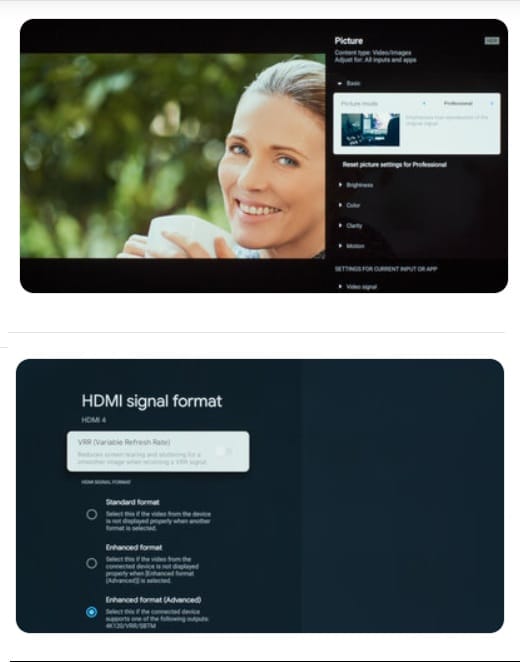
Go to Settings → Display & Sound → Picture → Picture Mode and select Cinema Pro for movies in a dark or dim room. Cinema Pro targets D65 and uses a 2.4 gamma curve — the same calibration target used in professional mastering suites. If you watch in a brighter room, Cinema Home adds some brightness while keeping accuracy reasonable. Netflix Calibrated Mode activates automatically when you’re in the Netflix app — leave it on, it’s legitimately well-calibrated.
Brightness
Navigate to Settings → Display & Sound → Picture → Brightness. Sony’s default brightness in Cinema Pro is conservative — if the picture looks too dark in your room, raise the OLED Light value by 5–10 points. Don’t confuse this with the Brightness slider directly below it, which controls black level lift — leave that at its default.
Motionflow: Off for Movies
Go to Settings → Display & Sound → Picture → Motion → Motionflow and set it to Off. If you ever want smoother motion for sports, Smooth or Standard are the least aggressive options to revisit — but for films, always off.
Dolby Vision on Sony
Sony’s OLED TVs support Dolby Vision — a key advantage over Samsung. Leave HDR Mode set to Auto (1) under Settings → Display & Sound → Picture → Advanced Settings → Video Signal → HDR Mode, and the TV handles detection automatically. Dolby Vision optimizes brightness and color frame-by-frame using dynamic metadata — no manual intervention needed once Auto is enabled. For our full Sony OLED recommendations, see our Sony OLED roundup.
Universal Settings That Apply to Every OLED
Regardless of brand, these settings are worth checking on any OLED TV.
Sharpness: always set to zero
Every OLED TV we’ve looked at ships with sharpness set somewhere between 5 and 15. Set it to zero on any brand. OLED pixels are inherently sharp — any sharpening on top of that introduces ringing artifacts around edges, especially on film grain.
Energy Saving: turn it off
Check for an Energy Saving or Eco Mode setting (all three brands have one, buried in different menus) and turn it off. Energy saving modes cap peak brightness by 30–40%, which completely undermines HDR performance. The power savings are minimal on an OLED panel anyway.
OLED care and screen savers
All three brands include some version of automatic pixel shifting, logo luminance adjustment, or a built-in screen saver. Leave all of these on at their defaults — they’re there to protect the panel and have no visible effect during normal film watching. If you’re ever worried about static elements, our article on whether OLED burn-in still matters in 2026 covers this in full.
Color temperature: Warm 2 / Warm
On LG this is called Warm 2. On Samsung and Sony it’s simply Warm or a close equivalent. This setting brings the white point closest to D65 — the standard color temperature used when movies are mastered. Most people find it looks slightly yellow at first, especially if you’re coming from a phone or laptop screen, but eyes adjust within a few minutes and it’s what the director intended.
The settings above cover what any OLED owner can dial in from their remote. If you want to go further — color temperature measured in Kelvin, 22-point white balance adjustment, gamma curves — our how to calibrate your OLED TV guide walks through that process step by step. For now, if you’re thinking about which OLED to pair these settings with, our roundup of the best OLED TVs of 2026 covers every category.
Still shopping for your OLED?
See our top-tested picks across every budget and use case — ranked by picture quality, gaming performance, and value.
See Best OLED TVs 2026 →Frequently Asked Questions
What are the best OLED TV settings for movies — Filmmaker Mode or Cinema Mode?
Filmmaker Mode is the most accurate starting point for movies in a dark room — it disables post-processing and targets the D65 color standard used in film mastering. Cinema or Cinema Pro mode adds a small brightness boost and slightly warmer colors, which works better if your room has ambient light. Either is a significant improvement over Standard or Vivid. For a full calibrated baseline for your specific model, the RTINGS settings guides are a reliable reference.
Should I use Dolby Vision or HDR10 settings on my OLED?
If your TV supports Dolby Vision (LG and Sony do; Samsung does not), leave HDR mode set to Auto and let the TV detect the format from the source. Dolby Vision uses dynamic metadata to optimize brightness and color scene-by-scene — it will generally outperform HDR10 on supported content. Dolby Vision doesn’t require any manual setting on your part once Auto is enabled. Samsung owners get HDR10+ as their dynamic HDR option, which is functionally comparable.
Why does my OLED look dark in Filmmaker Mode?
Filmmaker Mode targets a mastering reference level of around 100–200 nits — which is intentionally modest to match how the content was graded in a studio. In a bright room this can look underwhelming. The fix: raise OLED Pixel Brightness (LG), Brightness in Expert Settings (Samsung), or OLED Light (Sony) by 5–15 points, then stop when the picture feels balanced. Don’t switch out of Filmmaker Mode entirely — just adjust brightness within it. Samsung’s QD-OLED panels are also more prone to ABL-related dimming on large bright scenes, so a small Brightness bump is often warranted on the S90F and S90H specifically.
Do I need to change settings separately for SDR and HDR content?
Yes — and all three brands handle this automatically. LG, Samsung, and Sony store picture settings separately per signal type (SDR, HDR10, Dolby Vision, HLG). Changes you make in one mode don’t carry over to others. This is actually useful: you can set Filmmaker Mode for HDR movies and Cinema for SDR content, and the TV will switch between them automatically based on the incoming signal.
Is it worth hiring someone to professionally calibrate my OLED?
The settings in this guide will get most viewers to 90–95% of what a professional calibration achieves, at zero cost. A professional ISF calibration — which involves a colorimeter, software, and 2-point or 22-point white balance adjustment — makes sense if you have a reference-grade home theater setup or if color accuracy is critical to your work. For everyday movie watching, the settings above are all you need. Sony owners have one extra option: Calman Ready support, which lets the TV accept calibration data directly from Calman software — worth exploring if you later invest in a colorimeter.

iYaiii
Editor, GearPulse360
iYaiii is the editor and founder of GearPulse360, specializing in TV reviews and consumer electronics. He tests and researches every recommendation before publishing.
✅ Settings cross-referenced against RTINGS calibration data for 2025–2026 OLED models — last verified June 2026